Moving an Antidetect Browser Profile to Another PC: Cloud Sync vs. Local Storage
Learn what WADE X transfers when you switch computers, how cloud sync differs from local storage, how to move cookies, and why your browser fingerprint may change.

Alexey Mironov
Author covering privacy and digital security
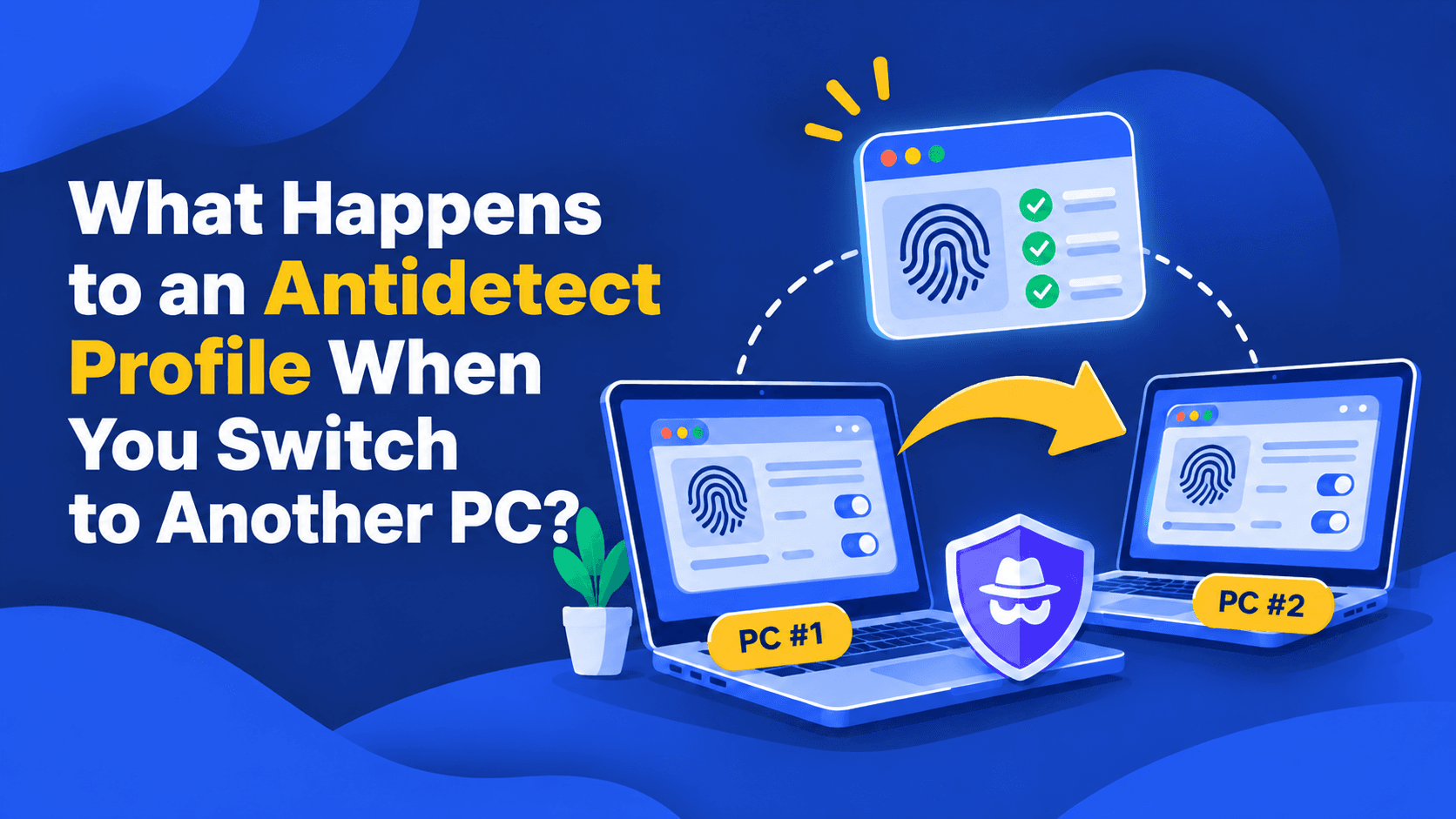
Moving to a new computer should not mean starting every browser session from scratch. But in an antidetect browser, a profile is more than a name in a list. It includes saved settings, website data, and characteristics generated when the browser runs on a particular device.
With WADE X, you can sign in to the same account on different computers and access your profiles. Whether their previous browsing state is available depends on the storage mode. And even when the settings carry over, the resulting Browser Fingerprint may not be identical.
Here is how cloud sync and local storage differ, what you can move manually, and what to check before switching PCs.
What Actually Makes Up a Browser Profile?
A browser profile has three distinct layers:
- Profile configuration: the profile entry, selected browser environment, connection settings, and fingerprint-related options.
- Browser data: Cookies, Local Storage, IndexedDB, history, passwords, and other state accumulated during browsing.
- Runtime characteristics: signals produced on the computer running the profile, including values influenced by the operating system, GPU, drivers, and rendering environment.
These layers are connected, but they are not interchangeable. Seeing a profile in your WADE X account on a new PC does not prove that all locally stored browser data has followed it. Likewise, restoring the same configuration does not guarantee identical rendering results on different hardware.
Cloud Sync vs. Local Storage in WADE X
Local storage: browser data stays on one computer
With local storage, the accumulated browser state remains on the device where the profile is used. This can suit workflows based on a single computer or situations where you prefer not to sync browsing data to the cloud.
The trade-off appears when you replace your PC, reinstall the operating system, or lose access to the original drive. Signing in to the same WADE X account does not automatically restore data that was stored only on the old device. Without a prior export or backup, that state may be unrecoverable.
According to the source material, WADE X’s free plan does not include cloud synchronization of browser data, although profile entries remain associated with the account. Check your current plan before relying on sync for a migration.
Cloud sync: access supported data across devices
Cloud synchronization is useful when you regularly switch computers or need to work with profiles from more than one workstation. When sync is enabled, supported categories of browser data can be accessed after signing in on another device.
However, cloud sync is not a complete image of the browser environment. WADE X does not synchronize browser cache, which can become very large. Sync also should not be treated as a comprehensive backup: the presence of a profile entry does not guarantee recovery of every piece of browser state.
WADE X lets you select local or cloud storage when configuring a preset. Global Preferences also include an Only cloud storage option. Before migrating, confirm which mode the profiles you need actually use.

Can You Use One WADE X Account on Two PCs?
Yes. You can sign in to the same WADE X account on your work and home computers. Different profiles can run simultaneously on different devices. For example, profile A can be open at work while profile B runs at home.
The same profile, however, can run on only one device at a time. Close it on the first computer before opening it on the second.
If cloud sync is enabled, the second computer can access the supported synchronized state. It still uses its own hardware and runtime environment, so the effective fingerprint can differ from what the first computer produced.
For consistency, the source recommends matching the profile’s OS configuration to the host: Windows on Windows, macOS Intel on an Intel Mac, and macOS ARM on Apple Silicon. This is a compatibility recommendation, not a claim that other configurations cannot launch.
How to Move Locally Stored Profile Data to Another PC
WADE X does not provide a portable full-profile archive that restores all browser data and reproduces the exact same fingerprint on another machine. The Clone function copies a profile within WADE X; it is not a full export for transferring the entire environment.
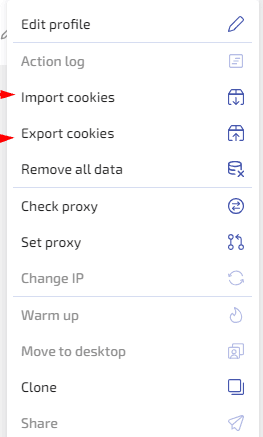
You can still transfer specific data, particularly Cookies.
Export and import Cookies
- On the original PC, open the menu for the relevant WADE X profile and choose Export cookies.
- If needed, select the export format in Preferences > Data > Default cookies export format. The available formats are JSON and Netscape.
- Save the exported file securely and transfer it to the new computer.
- Install WADE X on the new PC and sign in to the same account.
- Open the corresponding profile’s menu, choose Import cookies, and import the saved file.
- Launch the profile and check whether the necessary website sessions are still available.
This process transfers Cookies, not the complete browser state. Importing a Cookie file does not also restore Local Storage, IndexedDB, Service Workers, extension data, or browser cache. WADE X does not provide a built-in browser-cache export.
A successful Cookie import also does not guarantee that a website will accept an old login session. The service may require fresh authentication or additional checks.
Moving From Another Antidetect Browser to WADE X
Switching products is different from reopening an existing WADE X profile on a new PC. A complete automatic migration of all profile data and fingerprints from another antidetect browser is not available. WADE X instead supports bulk creation of new profiles from Cookie files or a configuration template.
Option 1: Create profiles from Cookie files
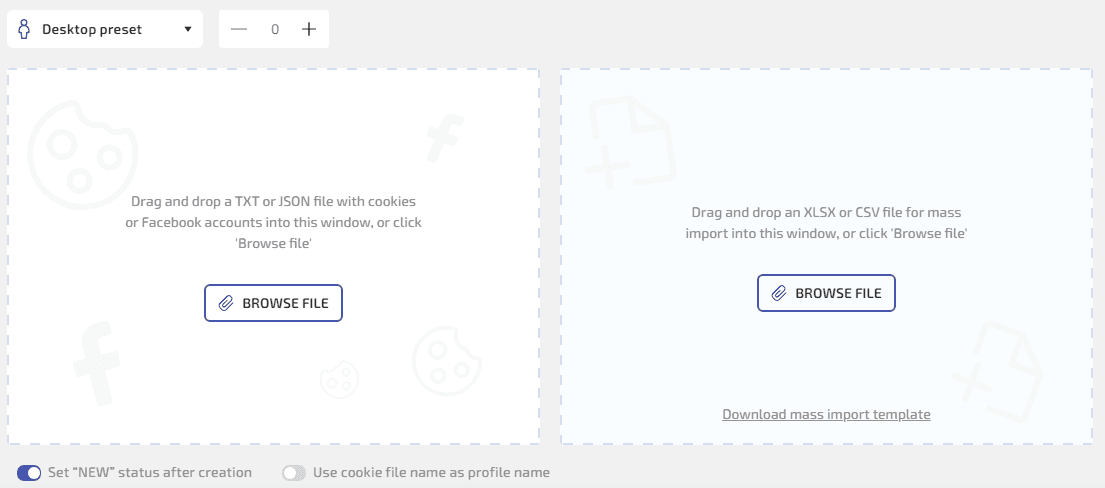
In the Mass creation window, upload TXT or JSON files containing Cookies. You can prepare one file for each source profile, select a preset for the new profiles, and optionally use each Cookie filename as its profile name.
The imported files supply Cookie data. They do not automatically reproduce the previous browser’s fingerprint configuration; new profiles use the selected preset.
Option 2: Use an XLSX or CSV template
The other side of Mass creation lets you download Download mass import template, fill it in, and upload the completed XLSX or CSV file.
The template described in the source includes fields for:
- Profile names and descriptions.
- Connection and Proxy settings.
- Operating system and browser settings.
- Selected hardware and fingerprint configuration parameters.
- Canvas, WebGL, Client Rects, Audio, WebGPU, and MediaDevices modes.
- Import cookies and Import passwords data.
Blank fields use the corresponding values from the chosen preset. Values such as fake and direct specify how Canvas or WebGL parameters are handled; they do not preserve an exact fingerprint result from the previous PC. The Import passwords field accepts prepared JSON data, but this does not establish that WADE X can export passwords from an existing profile.
Before importing a large batch, create a few test profiles. Verify the Cookie data, resulting configuration, and Proxy settings rather than assuming that a successful import recreates the old environment perfectly.
Why Can the Same Browser Fingerprint Change on Another PC?
A saved fingerprint configuration is not the same as the values actually produced when the browser runs. Some browser APIs reflect the device’s graphics stack and other runtime characteristics.
WebGL Context vs. WebGL Image
WebGL provides a useful example of this distinction:
- WebGL Context Info refers to graphics-related values exposed through browser APIs.
- WebGL Image refers to the rendered graphics output and the fingerprint derived from it.
Even if reported graphics parameters remain consistent, the rendered image may vary with the GPU, drivers, and runtime environment. In WADE X, adjusting reported GPU information and changing graphics-rendering output are different operations.
Consequently, opening the same profile on two computers with different hardware does not guarantee identical WebGL results. Replacing a graphics card can also affect the corresponding fingerprint signals.
This does not mean every fingerprint component changes whenever a profile starts. Nor does a change automatically mean that a website will restrict the account. Platforms evaluate different combinations of signals, and their exact rules are generally not public.
Canvas is another rendering-related component. The broader point is that preserving profile settings does not guarantee an identical effective browser environment on different hardware.
Does the public IP change too?
Network identity is a separate issue. Switching PCs does not necessarily change the public IP seen by websites. That depends on the profile’s connection settings and the Proxy’s actual exit address.
If the same Proxy continues to provide the same exit IP, the public address may remain unchanged. If you switch Proxies or the exit address changes, the site can observe different network characteristics. Cloud storage does not lock a profile to a permanent IP address.
What to Check Before Switching Computers
Before retiring the old device, confirm where each important profile stores its browser data and whether cloud sync is enabled.
If the data is local, export the categories that WADE X supports and understand what those exports do not contain. For bulk migration, save your Cookie files, download the current XLSX or CSV template, and test a small number of profiles before importing the rest.
On the new computer, verify that the necessary sessions are available, the Proxy is configured correctly, and the resulting IP and browser characteristics meet your workflow requirements. Remember that different profiles may run on different PCs at the same time, but a single profile cannot be open on both simultaneously.
Do not delete the original local data until you have verified the new setup.
Conclusion
Moving an antidetect browser profile is not always as simple as copying one file. Cloud sync gives you access to supported browser data across devices. Local storage keeps that data on the original computer and may require advance preparation. Cookie imports and bulk creation can restore selected parts of a workflow, but not an entire browser environment.
Most importantly, the final Browser Fingerprint is influenced by the computer where the profile runs. Keeping profile configuration, stored data, runtime fingerprint, and network connection separate makes migrations more predictable and helps you choose the right storage method in WADE X.