Cookie Management in an Antidetect Browser: Import and Export
Learn how cookies work in antidetect browser profiles, how to import and export them in WADE X, and how to preserve the state of separate browser sessions.

Alexey Mironov
Author covering privacy and digital security

An antidetect browser such as WADE X lets you create separate browser profiles with isolated local data and configurable Browser Fingerprint parameters. These profiles can be used for multi-account management, marketing, web application testing, and other tasks that require browser sessions to remain separate.
Cookies play an important role in these profiles. They are small pieces of data that websites store in a browser to remember sessions, login status, user preferences, and other information.
For antidetect browser users, proper cookie management helps keep sessions separate across profiles and preserve their state between visits. Let’s take a closer look at how cookies work and how to manage them in WADE X.
What Are Cookies?
Cookies are small pieces of data that websites store in a user’s browser. When you visit a website, its server can send a cookie to your browser. The browser stores it and, when applicable, sends it back to the relevant domain with subsequent requests.
Websites commonly use cookies to:
- maintain authenticated sessions;
- remember user preferences;
- save language and interface settings;
- support analytics and advertising systems;
- recognize returning browser sessions.
A cookie can include attributes such as its name, value, Domain, Path, expiration time, and security flags.
For example:
name=example_cookie; value=12345; domain=example.com; path=/; Secure; HttpOnly
Depending on its settings, a cookie may exist only for the current session or remain stored until it expires or is manually deleted.
The Role of Cookies in an Antidetect Browser
In an antidetect browser, cookies are part of each browser profile’s isolated local state.
When you sign in to a website, cookies can retain session information so you do not have to log in again every time you launch the profile. They can also preserve language preferences, interface settings, and other site-specific options.
Cookies help websites recognize returning browser sessions. However, they should not be confused with Browser Fingerprinting.
Websites can analyze many signals independently of cookies, including IP addresses, HTTP Headers, Canvas, WebGL, Fonts, screen characteristics, Local Storage, and other Browser Fingerprint parameters.
Managing cookies alone therefore does not provide anonymity or prevent websites from analyzing the browser environment.
What Happens If a New Profile Has No Cookies?
A new antidetect browser profile usually starts with little or no accumulated local data. It has no previous website sessions, saved preferences, or cookies unless they have been imported or created through normal browsing.
This is not inherently a problem. Websites regularly receive visits from new browsers and devices.
However, cookies may be necessary for websites to function as expected. For example, they can preserve login status, shopping cart contents, preferences, progress in multi-step forms, and other session data.
If you repeatedly delete or completely disable cookies, some websites may ask you to sign in again or lose previously saved session state.
Cookies are therefore best understood as one component of a browser profile’s local environment, not as a universal way to increase an account’s trustworthiness.
Ways to Manage Cookies in an Antidetect Browser
Creating Cookies Through Normal Browsing
The simplest way to obtain cookies is to use a browser profile normally.
As you visit websites, sign in to services, and interact with pages, the profile gradually accumulates cookies and other local data.
This process can also be automated through browser profile warming. In WADE X, profile warming automatically visits websites and builds up local browser state before the profile is used for its main tasks.
There is no universal number of cookies or warming duration that guarantees better account quality or fewer verification checks. The outcome depends on the particular website and the signals it uses.
Creating Cookies Automatically
Cookies can also be created during automated website visits.
Browser Automation tools can open pages, navigate between them, and interact with website elements. As with normal browsing, websites may store cookies during these sessions.
Common browser automation tools include Selenium and Puppeteer.
However, automatically generating large numbers of cookies does not, by itself, make a profile more trustworthy. Websites may consider many additional technical and behavioral signals, and automated activity may also be detected.
Automated cookie creation should therefore be viewed as one way to prepare a profile, not as a guaranteed method for passing anti-bot or anti-fraud checks.
Importing Existing Cookies
Importing cookies can help you restore or transfer an existing browser session state to another profile more quickly.
WADE X supports common cookie formats, including JSON and Netscape.
To import cookies, open the WADE X profile actions menu and select Import Cookie.
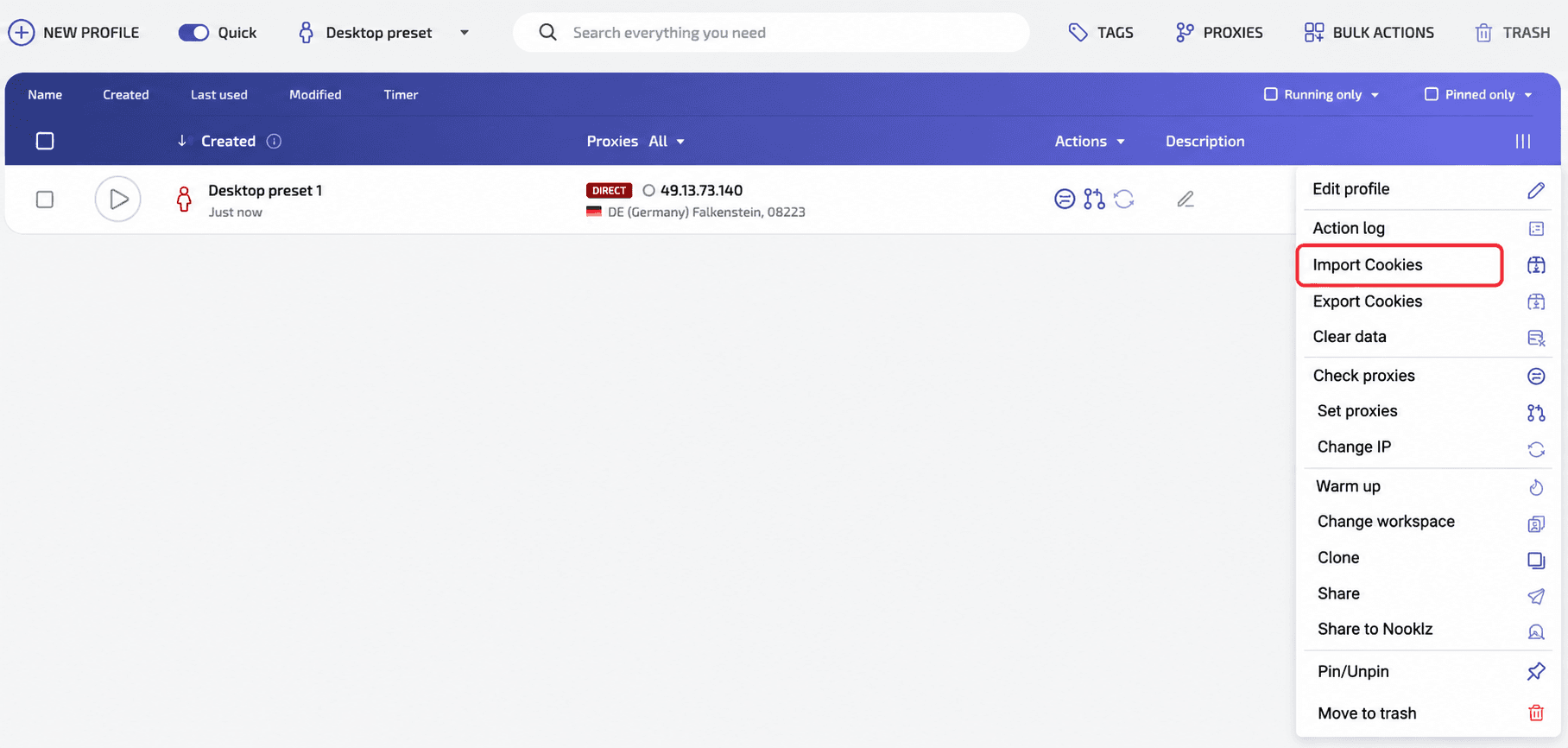
Cookie management in a WADE X profile, including options to view, edit, import, and export saved cookies.
In the window that opens, paste the cookie data or upload the corresponding file.
After selecting the necessary options, click Import.
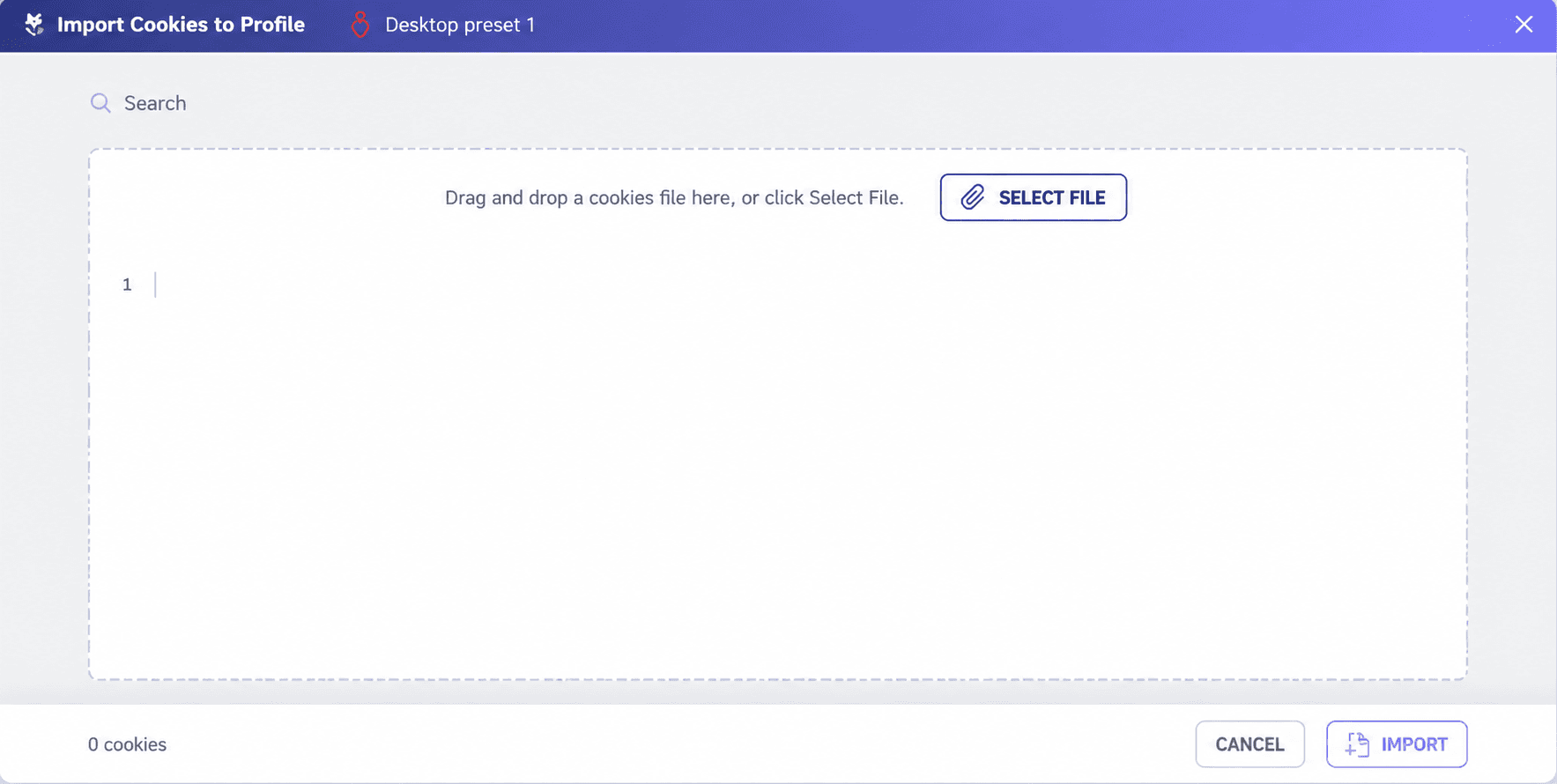
Importing cookies into a WADE X profile by pasting data or uploading a cookie file.
WADE X supports several JSON cookie formats as well as the Netscape format, including the #HttpOnly_ prefix used for HttpOnly cookies in Netscape files.
Where Can You Get Cookies to Import?
The safest option is to use cookies from your own browser sessions.
For example, you can export cookies from a profile or environment you control and import them later when you need to restore or transfer a session.
Be cautious with cookie files from unknown sources. They may contain active Authentication Tokens and other sensitive session data. Using or sharing such files can lead to unauthorized account access.
For the same reason, you should never publish authentication cookies or share them through untrusted services.
Exporting Cookies From an Antidetect Browser
Exporting cookies lets you save browser session data and, when necessary, transfer it between profiles or other environments.
This can be useful for backups, testing, profile migration, and teamwork when authorized access to specific resources needs to be preserved.
Why Export Cookies?
Cookie exports can be useful in several scenarios:
- Data transfer: Moving cookies between profiles or devices you control.
- Backup: Saving session state in case a profile needs to be restored.
- Teamwork: Transferring authenticated session data as part of authorized access to shared work resources.
- Testing and development: Reproducing a particular browser state in a controlled test environment.
Because exported cookies may contain authentication data, these files should be treated as confidential.
How to Export Cookies
Open the WADE X profile actions menu and select Export Cookies.
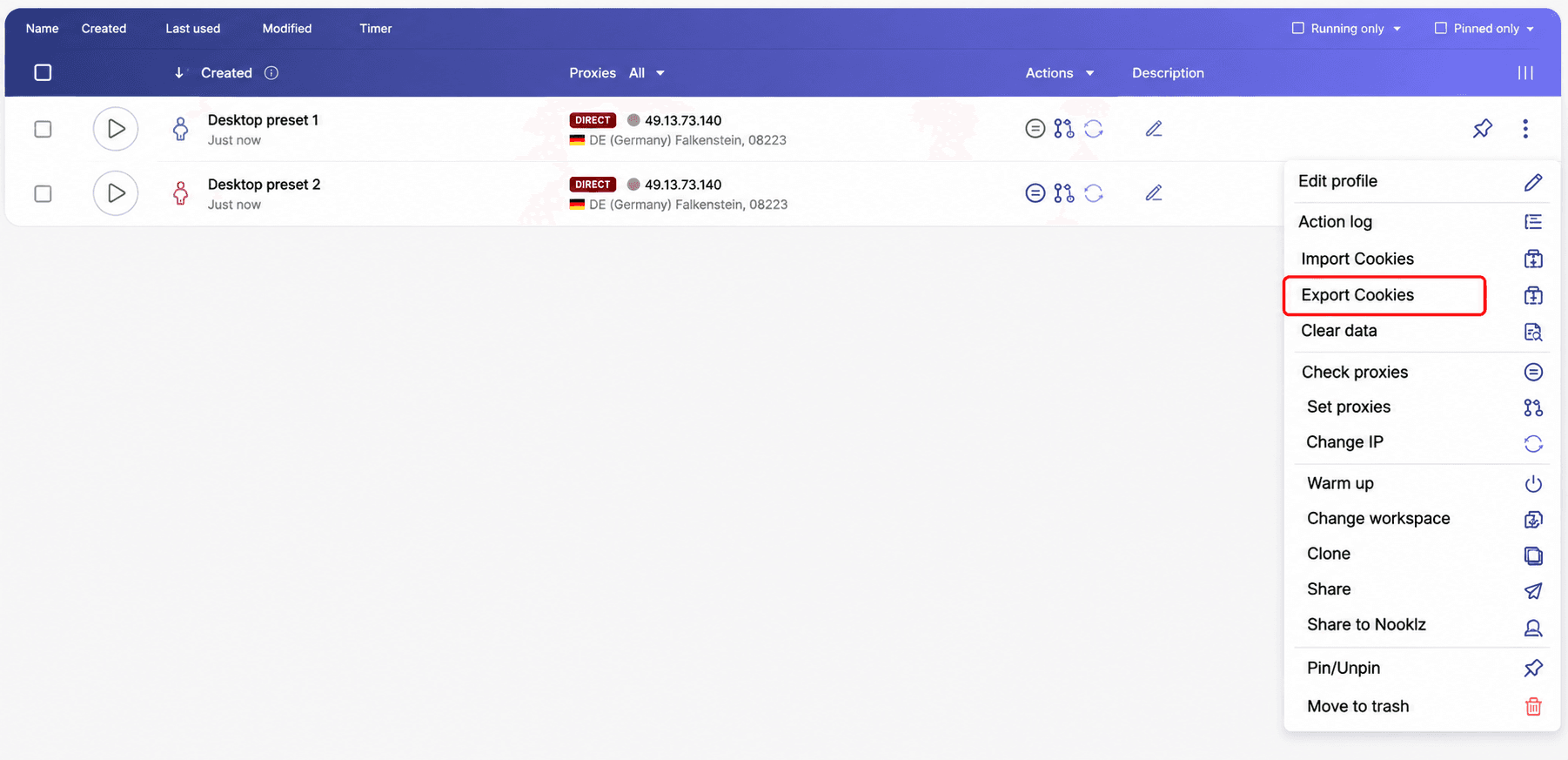
By default, cookies can be exported in JSON format. Netscape format is also available when compatibility with other tools is required.
Exporting cookies from a WADE X profile to save or transfer session data to another browser profile.
Store exported files securely, especially if they contain data from active authenticated sessions.
Conclusion
Cookies are an important part of browser sessions. They help preserve login status, user preferences, settings, and other information needed for websites to function properly.
In the WADE X antidetect browser, cookies are part of each profile’s isolated local environment. They can be created through normal browsing or browser profile warming, and imported or exported when sessions need to be transferred or backed up.
However, cookies are only one component of the browser environment. Websites may also analyze IP addresses, Local Storage, Browser Fingerprint, account activity, and other technical or behavioral signals.
Effective cookie management is therefore primarily about preserving the session state you need and keeping profile data separate, not guaranteeing anonymity or bypassing website security checks.