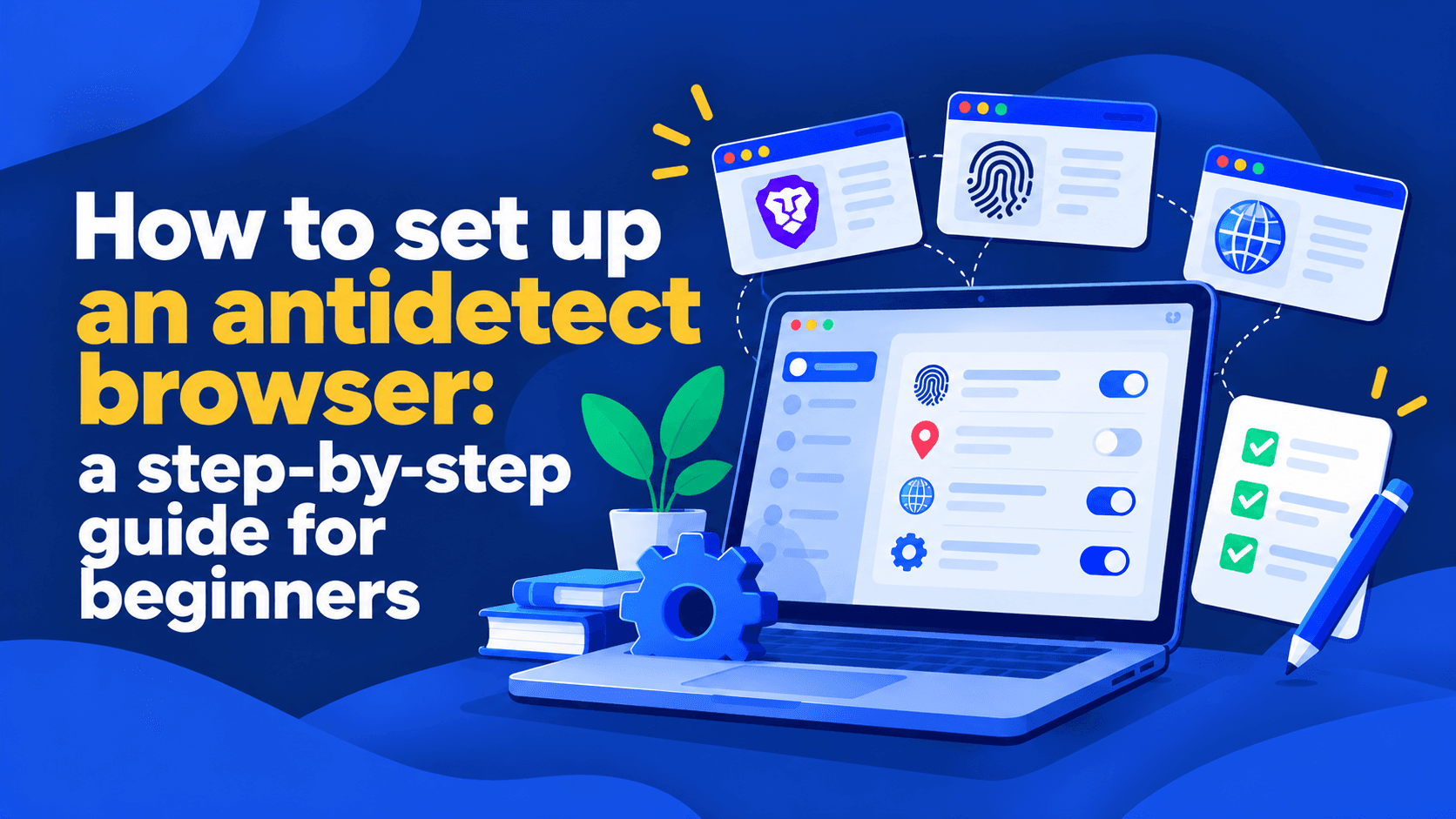
How to Set Up an Antidetect Browser: A Beginner's Guide
Learn how to set up an antidetect browser, create your first profile, choose a proxy, and verify your settings before browsing.
- 1.Step 1. Decide What You Need Your Browser Profile For
- 2.Step 2. Create Your First Browser Profile
- 3.Step 3. Choose the Right Connection
- 4.Step 4. Check Your Settings Before You Start
- 5.Step 5. Keep Your Browser Profile Consistent
- 6.Common Beginner Antidetect Browser Setup Mistakes
- 7.Do You Actually Need to Configure an Antidetect Browser?
- 8.Your First Identity in NOID Browser
Getting started with an antidetect browser doesn’t require understanding dozens of technical settings. For your first setup, focus on four practical questions: what you need the browser profile for, which connection to use, how to keep the session separate, and how to check that everything works as expected.
Many modern antidetect browsers can generate profiles automatically. Even professional tools don’t necessarily require you to configure every parameter manually.
The right approach depends on your task.
If you manage numerous accounts, use different proxies, or automate browser workflows, learning to configure a professional antidetect browser such as WADE X can be worthwhile.
If you simply need a separate browser context without complicated setup, consider NOID browser. It creates ready-to-use Browser Identities with their own browser and device settings, connections, and stored data.
Let’s walk through the setup process and see which steps actually matter for your needs.
Step 1. Decide What You Need Your Browser Profile For
Before creating a profile, think about how you plan to use it.
Your goal determines which settings you’ll need and whether a professional antidetect browser is necessary.
Managing Professional Accounts
If you work with numerous accounts, perform repetitive tasks, or collaborate with a team, organizing your browser profiles is important.
Saved configurations, separate connections, customizable settings, and automation tools can all be useful here.
For these tasks, WADE X is one option: a professional antidetect browser with advanced profile management tools.
Using a Separate Browser for Another Activity
Sometimes all you need is an independent browser context.
For example, you might want to use an additional account, maintain a separate browsing history, or keep cookies and login data from different sessions apart.
You don’t necessarily need professional configuration tools for that.
A browser with separate identities, such as NOID browser, may be sufficient.
When Websites Keep Recognizing Your Previous Browser
Imagine you’ve deleted your cookies, opened an Incognito window, or switched VPN servers, but a website can still associate your new visits with previous sessions.
That’s because websites may consider more than your IP address. Browser characteristics, device information, and account data can also play a role.
A separate Browser Identity provides a new browser context with its own settings and stored data.
However, it doesn’t guarantee that a website will stop recognizing you or remove existing restrictions.
Step 2. Create Your First Browser Profile
Let’s use the professional antidetect browser WADE X as an example.
1. Install and Launch the Browser
Download the current version of WADE X from its official website, install the application, and sign in to your account.
Once the application opens, navigate to the browser profile management section.
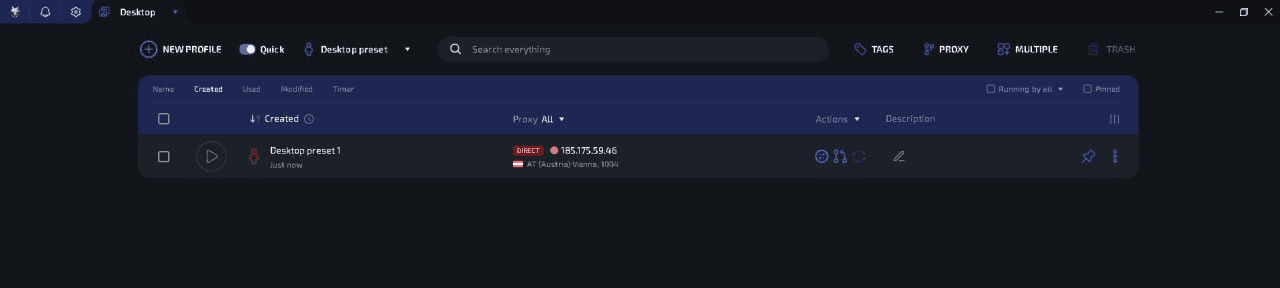
2. Create a New Profile
Select the option to create a new browser profile.
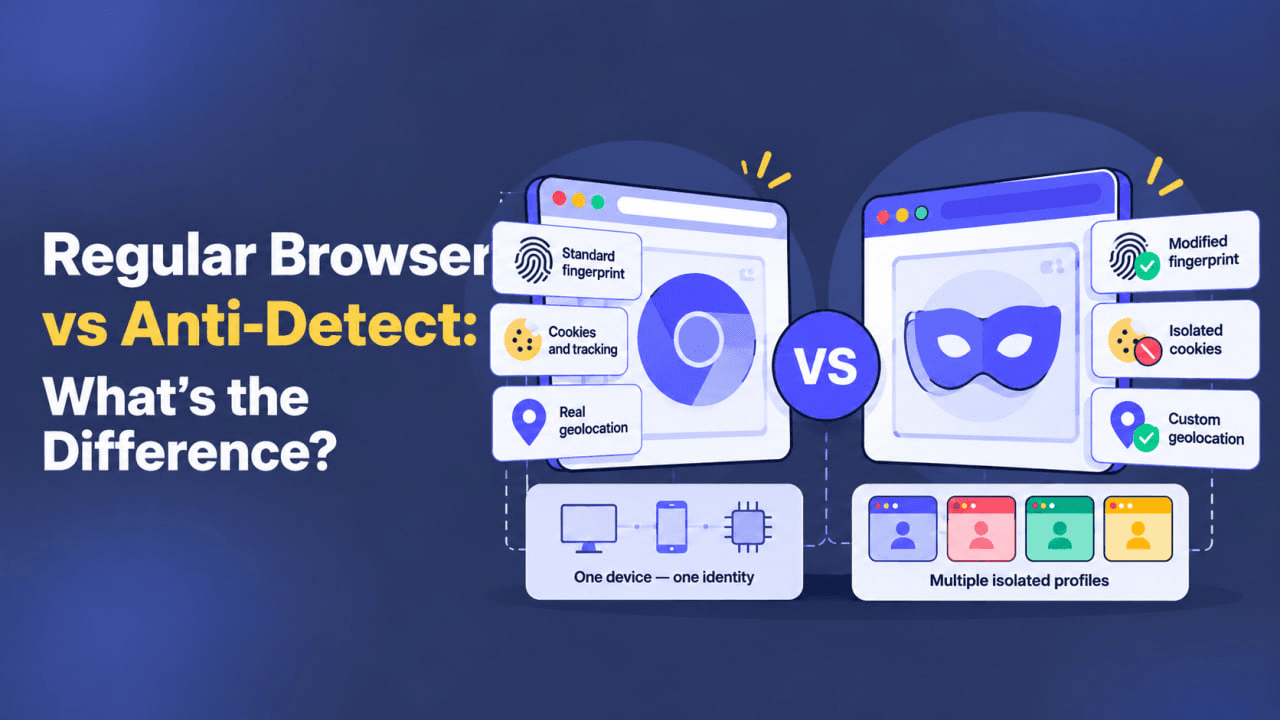
In an antidetect browser, a profile is a saved browser configuration with its own settings and data.
Unlike a regular browser tab, a profile can be reopened with its previously saved configuration.

3. Use a Ready-Made Configuration
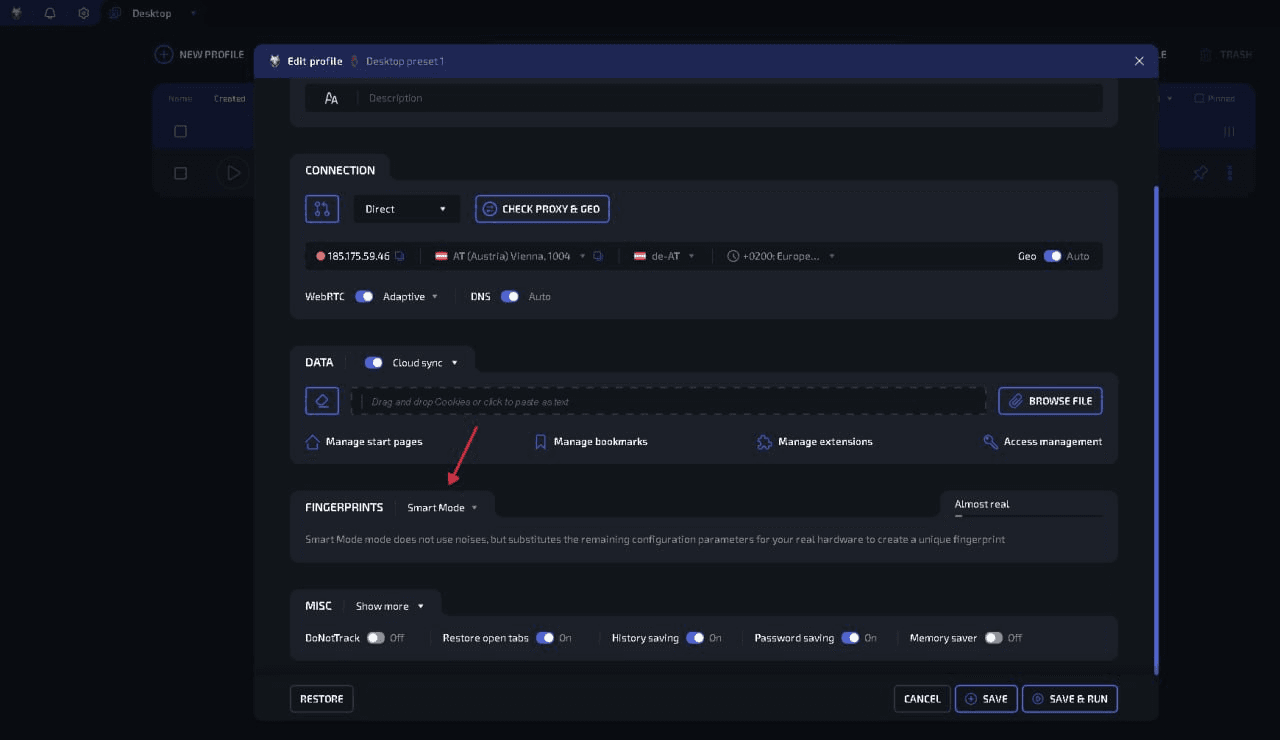
For your first profile, it’s usually best to use automatic parameter generation or Smart Mode, if your installed version offers that option.
This helps you create a consistent configuration without manually adjusting dozens of technical characteristics.
There’s no reason to change settings simply because the application allows you to.
If you don’t know what a particular parameter does, leaving the suggested value unchanged is generally the better starting point.
4. Give Your Profile a Clear Name
Choose a name that makes the profile easy to identify.
For example:
Project AResearch SessionAccount 01
Clear names help prevent confusion as you create more profiles.
5. Save Your Profile
Once you’ve selected the basic settings, save the configuration.
You now have a separate browser profile that you can reopen later.
For detailed instructions using the application interface, see the WADE X installation and first profile setup guide.
Step 3. Choose the Right Connection
Choosing a connection is one of the most important parts of antidetect browser setup.
An antidetect browser manages your browsing environment, but using a different IP address may require a separate network connection.
However, you don’t always need a proxy.
Direct Connection
If you don’t need a separate IP address, you can use your regular internet connection.
In this case, websites will see the public IP address of your current network.
This option works when your goal is to separate browser data rather than change your network route.
Residential Proxy
A residential proxy uses an IP address associated with a residential internet service provider.
This type of connection can be useful when your task requires a separate IP address or a connection associated with a particular region.
However, a residential IP doesn’t guarantee access to every website. Platforms may also consider IP reputation and other signals.
Datacenter Proxy
A datacenter proxy uses an IP address from data center infrastructure.
These connections are often available at a relatively low cost.
However, some websites can identify datacenter IP addresses and apply additional checks or restrictions.
Whether this matters depends on your specific needs.
Mobile Proxy
A mobile proxy routes traffic through a mobile carrier’s network infrastructure.
It may be useful when your task specifically requires a mobile network connection.
When choosing one, consider the cost, session behavior, and whether the IP address may change.
Beginners don’t need to purchase a mobile proxy simply because it’s a more specialized option.
Static or Rotating IP?
Another important consideration is whether your IP address stays the same between connections.
A static IP is useful for long-running authenticated sessions where a predictable connection matters.
A rotating IP may suit other tasks, but changes should be intentional.
If you regularly use the same browser profile, an unexpected change in IP address or country may trigger additional website verification.
How to Add a Proxy to an Antidetect Browser
The general process is straightforward:
- Open your browser profile’s connection settings.
- Select a supported proxy type.
- Enter the server address and port.
- Add authentication credentials if required.
- Test the connection.
- Save the profile settings.
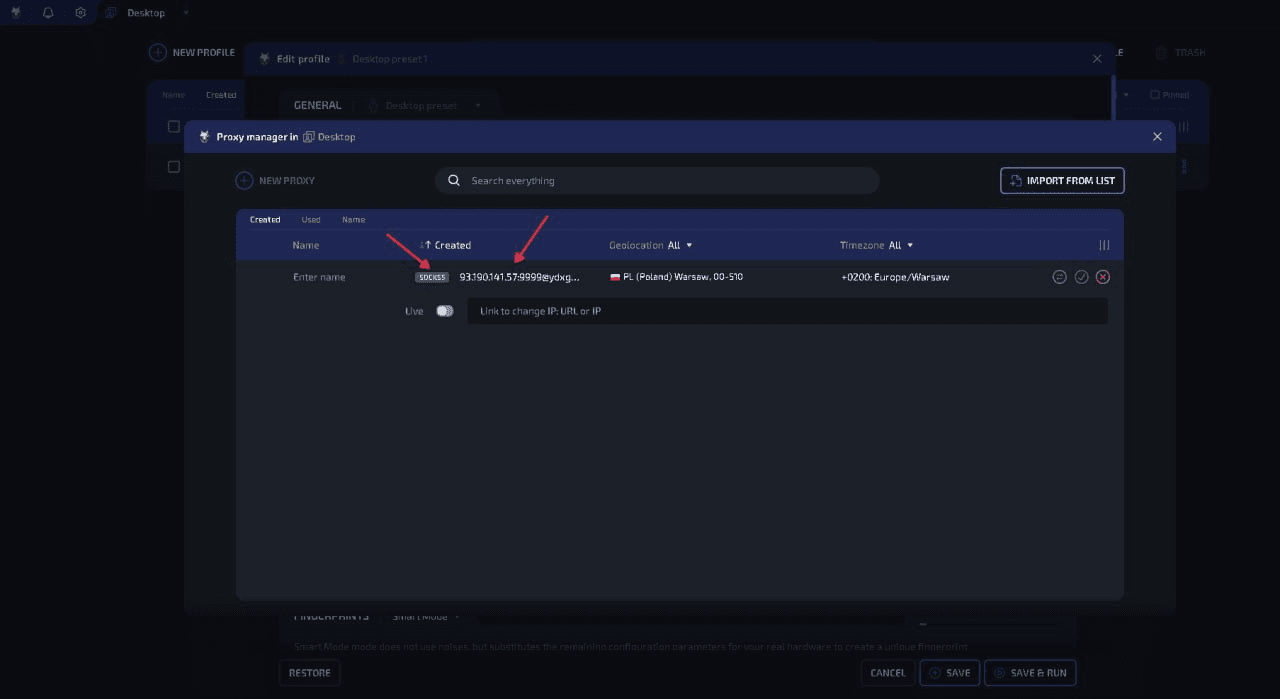
The exact fields depend on your proxy provider and browser.
For detailed instructions on proxy protocols, credential formats, and connection testing, see How to Set Up a Proxy in an Antidetect Browser.
If you don’t need professional connection configuration, NOID browser offers built-in residential proxies.
You can create an Identity and select an available connection without first searching for a third-party proxy provider.
Built-in proxy traffic allowances depend on the product’s current terms.
Step 4. Check Your Settings Before You Start
After creating your profile and choosing a connection, verify that everything works as expected.
Check That Your Profile Opens
Launch the profile you created.
If the browser opens without errors, you can move on to testing the connection.
If it fails to launch, review the profile settings and any error messages displayed by the application.
Check Your Public IP Address
Open Whoer.net.
The service displays your public IP address and available connection information.
Check the following:
- Which public IP address is displayed?
- Does the country match your expected location?
- Which internet provider or network type is detected?
- Does the result match your selected connection?
If you’ve configured a proxy but still see your regular network’s IP address, check whether the proxy is actually being applied to the running profile.
Check Your Browser Characteristics
Review the available information about your browser and device.
If you’ve selected a particular connection region, make sure the remaining settings are appropriate for your task.
However, a difference between your browser language and IP country isn’t necessarily a configuration error. Someone can use a connection from another country while keeping their preferred browser language.
Check Whether Your Data Is Saved
If you’re creating a persistent profile, make sure the cookies and session data you need are preserved after closing the browser.
You can test this by opening a test website, saving permitted session data, closing the profile, and reopening it.
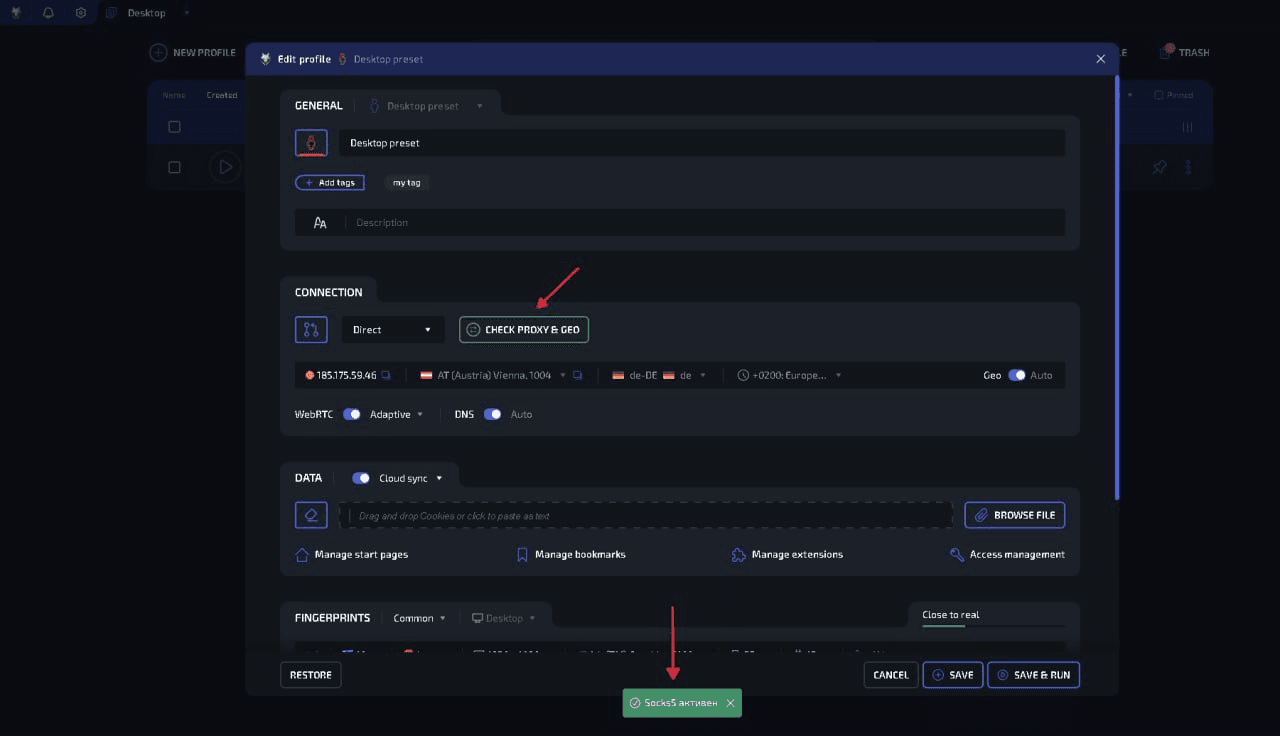
WADE X also provides a CHECK PROXY & GEO feature, described in its proxy setup guide.
Step 5. Keep Your Browser Profile Consistent
One common beginner mistake is creating a new profile for every session, even when the task requires previously saved data.
If you’re using a browser for an ongoing project, reopening the same profile is usually more convenient.
Keep Different Sessions Separate
Use separate profiles when you need independent storage for cookies, login information, and browsing history.
This helps prevent accidental mixing of data between different activities.
Don’t Change Connections Without a Reason
If you regularly use a profile with a particular connection, avoid changing its IP address or region unnecessarily.
Unexpected changes may trigger additional verification or require you to sign in again.
Don’t Delete Cookies Before Every Session
Cookies help websites remember session information.
If you constantly clear them without a specific reason, you may have to sign in repeatedly and complete additional checks.
Use Persistent Profiles for Recurring Tasks
For example, if you’ve created a separate browser for a particular project, continue using that saved profile when you return.
A persistent browser context retains the necessary data between sessions.
A temporary browser context is suitable when you don’t need to preserve session information.
The right choice depends on how you intend to use the browser.
Common Beginner Antidetect Browser Setup Mistakes
Even when your browser generates profiles automatically, you can still run into problems.
Creating Multiple Profiles Without Tracking Their Connections
You create several profiles but don’t know which IP address each one uses.
What to do: Give profiles clear names and verify their connections before using them.
Entering Incorrect Proxy Settings
Mistakes in the server address, port, protocol, or authentication credentials can prevent the connection from working.
What to do: Compare your settings with the information provided by your proxy service. If needed, follow the step-by-step proxy setup guide.
Not Checking Your Public IP
A profile may launch successfully without using the connection you expected.
What to do: Check your IP address and country using Whoer.net before you start.
Constantly Changing Profile Settings
You repeatedly modify an existing profile without a specific goal.
What to do: Keep a working configuration consistent. Change settings only when you understand what problem the change is supposed to solve.
Using a Temporary Session When You Need Persistent Data
You close the browser and lose information you expected to keep.
What to do: Check how your browser stores session data and use a persistent profile for recurring tasks.
Manually Changing Unfamiliar Parameters
Trying to configure everything yourself can lead to incompatible settings or unstable behavior.
What to do: Start with an automatically generated configuration and move to manual adjustments only when necessary.
Do You Actually Need to Configure an Antidetect Browser?
You now know what antidetect browser setup involves: creating a profile, choosing a connection, checking your settings, and preserving session data.
But do you really need to handle all these steps yourself?
If you professionally manage numerous accounts, collaborate with a team, use APIs, or automate browser workflows, advanced configuration makes sense.
Professional antidetect browsers provide the flexibility these tasks require.
But if you simply want a separate browser context, there’s no need to spend time learning complicated settings.
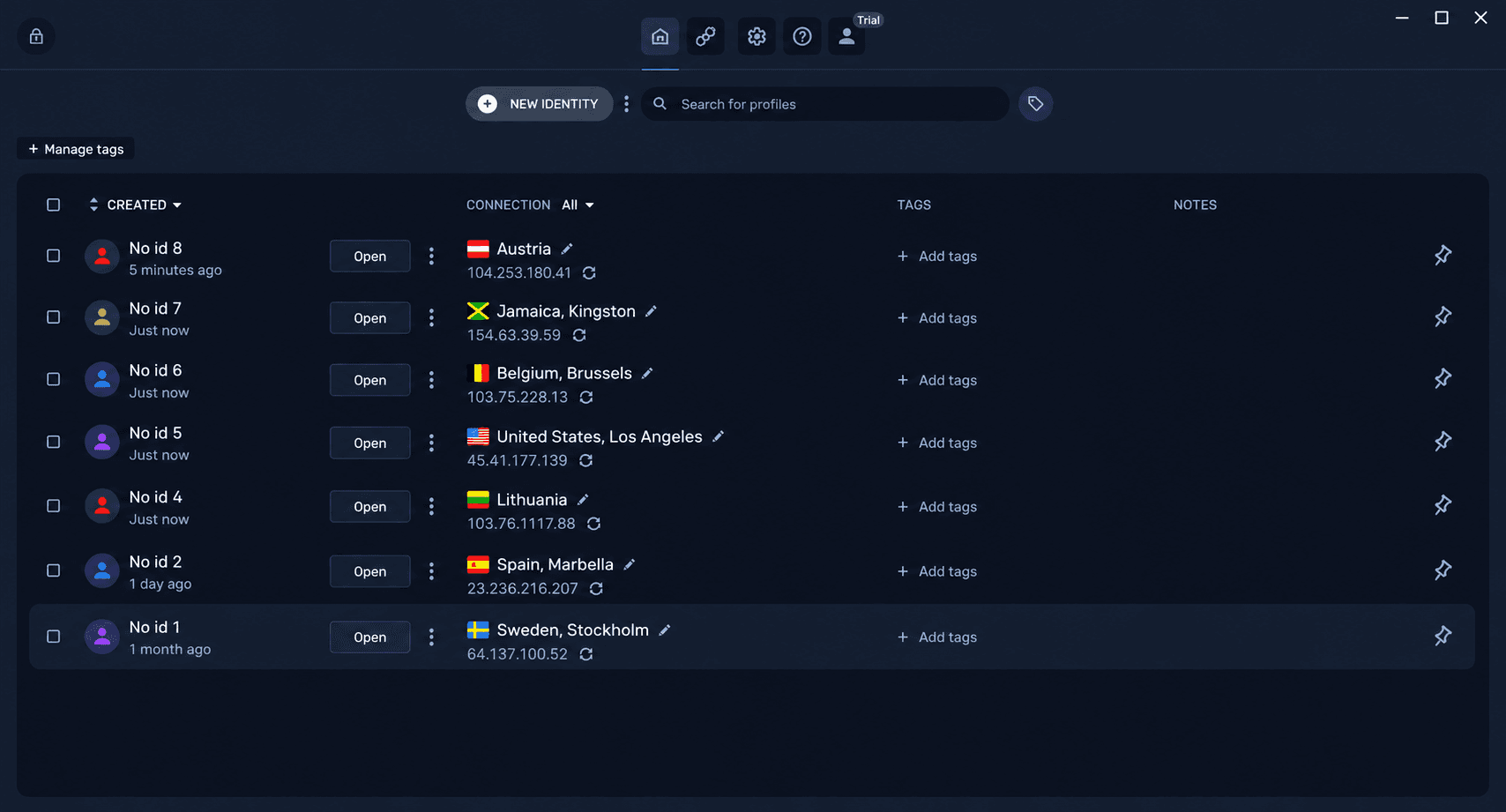
That’s the approach offered by NOID browser.
Each Identity includes its own browser and device settings, connection, and stored data.
Instead of configuring everything manually, you get a ready-to-use browser environment.
The process is simple:
Create Identity → Open → Browse → Return Later
Create an Identity, open the browser, use it for your task, and return to the saved environment whenever you need it.
How Much Does NOID Browser Cost?
NOID browser offers the following terms:
- 7-day free trial.
- No credit card required to start the trial.
- $20 per month after the trial.
- Unlimited Browser Identities.
If you don’t need professional profile management tools, this approach lets you get started without learning additional configuration options.
Try NOID Browser Free for 7 Days
Your First Identity in NOID Browser
Getting started takes just a few steps.
- Done:Visit the official NOID browser website and create an account.
- Done:Download and install the application.
- Done:Sign in to NOID browser.
- Done:Create a new Browser Identity.
- Done:Select an available connection if needed.
- Done:Open the Identity as a separate browser.
- Done:Check the connection and start browsing.
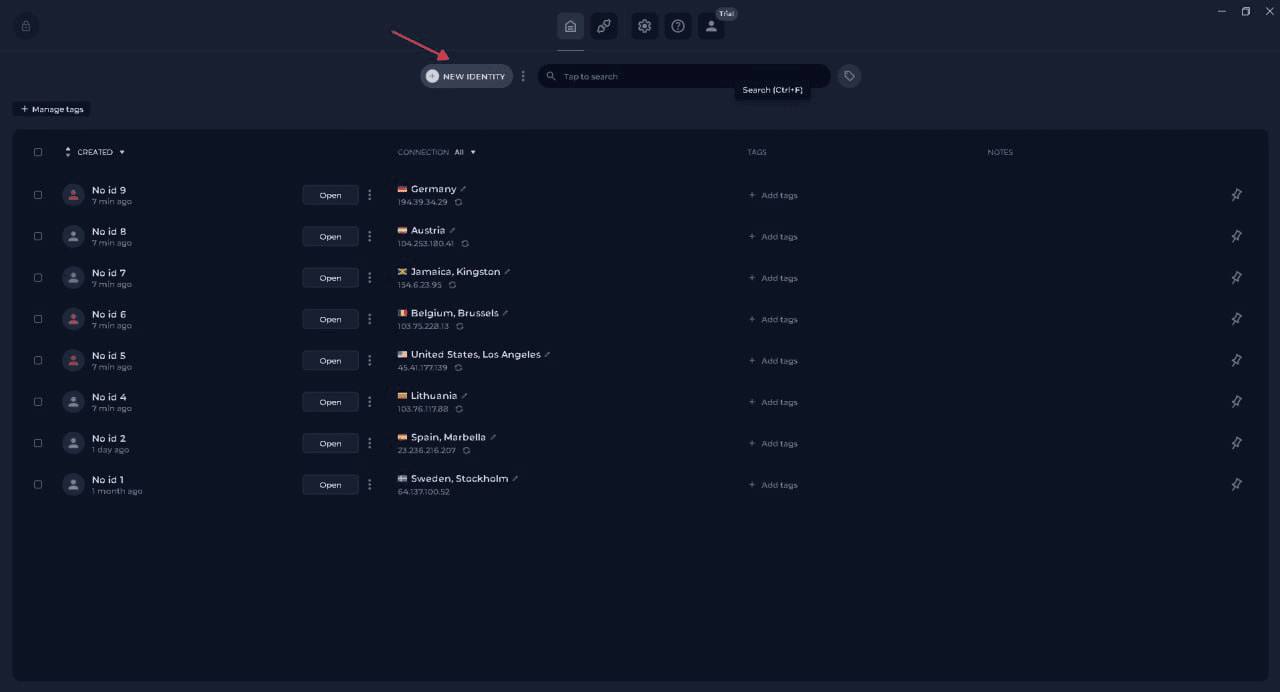
The essential Identity settings are already prepared. You don’t need to configure a Browser Fingerprint manually before your first session.
The next time you need the same browser context, you can reopen the Identity with its saved settings and data.