Proxies in WADE X Anti-Detect Browser: Complete Setup Guide
A complete guide to proxies in the WADE X anti-detect browser: which type to choose, how to add a proxy to a profile, Wade Proxy, and common issues.
- 1.Why You Need Proxies for Multi-Accounting
- 2.Residential, Mobile, or Datacenter Proxies — Which to Choose
- 3.HTTP and SOCKS5 Proxies: What's the Difference and When to Use Each
- 4.Proxy Connection Types in WADE X Anti-Detect Browser
- 5.How to Add a Proxy to a Profile in WADE X Anti-Detect Browser
- 6.Saving Proxies in the Proxy Manager
- 7.Wade Built-In Proxies — How to Connect and Top Up
- 8.Proxy Connection Format
- 9.How to Check a Proxy in WADE X: Quick Check and IP Reputation
- 10.Proxy Not Working in WADE X: Causes and Solutions
A complete guide to proxies in the WADE X anti-detect browser: which type to choose, how to add a proxy to a profile, Wade Proxy, and common issues.
Why You Need Proxies for Multi-Accounting
WADE X does not change your IP address automatically — that’s what a proxy is for. Without a proxy, all profiles will run from the same real IP, making it easy for platforms to detect and ban your accounts.
The main rule: one profile — one fixed proxy. Do not rotate proxies within a single profile — it creates a suspicious pattern.
Residential, Mobile, or Datacenter Proxies — Which to Choose
Datacenter proxies — cheap, but platforms detect them easily. These IP addresses are largely already on blacklists and are not suitable for serious work.
Residential proxies — IPs from real internet providers used by regular users on their home devices. High platform trust. Good for Facebook, Google, Amazon, eBay.
Mobile proxies — IPs from mobile carriers. Maximum trust. Good for Instagram, TikTok. Thousands of real users share one mobile IP — platforms are used to them.
Practical rules:
- Facebook, Google, Amazon, eBay → use residential proxies
- Instagram, TikTok → mobile proxies
- Never use free proxies
HTTP and SOCKS5 Proxies: What’s the Difference and When to Use Each
HTTP proxy — works only with HTTP/HTTPS traffic. Does not encrypt traffic between you and the proxy server. Easier to set up, suitable for most tasks.
SOCKS5 proxy — works with any traffic, more versatile. Important note: most SOCKS5 proxies currently only work in TCP mode, and even if the provider claims UDP support — don’t take it at face value. Without UDP, the QUIC and HTTP/3 protocols won’t work.
SSH proxy — proxy with SSH tunnel encryption. An extra layer of protection for traffic between you and the proxy server.
Proxy Connection Types in WADE X Anti-Detect Browser
WADE X supports several connection types — the choice depends on your task and the proxy you are using.
NOT SET — connection not set.
SOCKS5 — SOCKS 5 proxy.
HTTP — HTTP proxy.
SSH — proxy with SSH encryption.
DIRECT — native connection, your real IP.
TOR — connection via TOR network.
LOCALHOST — connection to specified port.
WADE PROXY — clean proxies with payment for traffic.
How to Add a Proxy to a Profile in WADE X Anti-Detect Browser
Method 1: From the Profile List (Quick, Without Opening the Profile)
This method works even if the profile is already running — the proxy changes on the fly.
Step 1. In the profile list, find the profile you need. In the profile row you will see the connection type label — for example DIRECT, HTTP, SOCKS5.
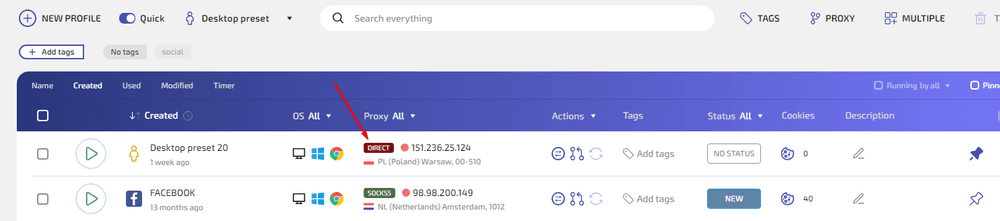
Step 2. Click on the label. A dropdown menu will appear with all available connection types.
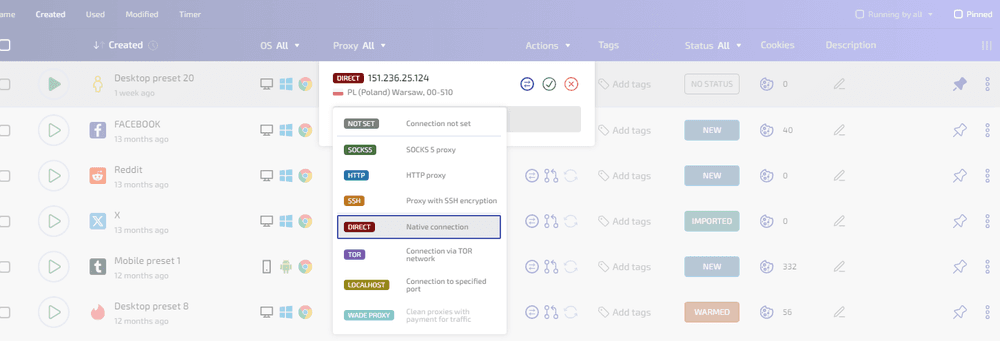
Step 3a. If entering the proxy manually: select the type (SOCKS5 or HTTP). An input field will appear — enter the details in the format host:port@login:password. Click the checkmark to save.
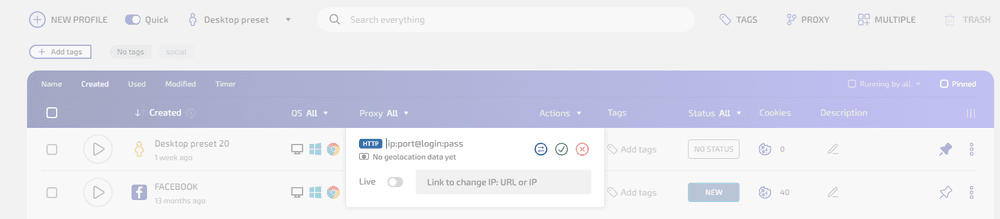
Step 3b. If selecting from the Proxy Manager: click the proxy manager icon next to the input field — a list of proxies you added earlier will open. Select the one you need with one click.

Step 4. If the profile was running — the change applies immediately, no restart needed.
Method 2: Through Profile Editing
Use this when you need to configure the proxy alongside other profile settings, or verify it works right there.
Step 1. Select Edit profile from the context menu (three dots).

Step 2. In the form that opens, go to the CONNECTION section.
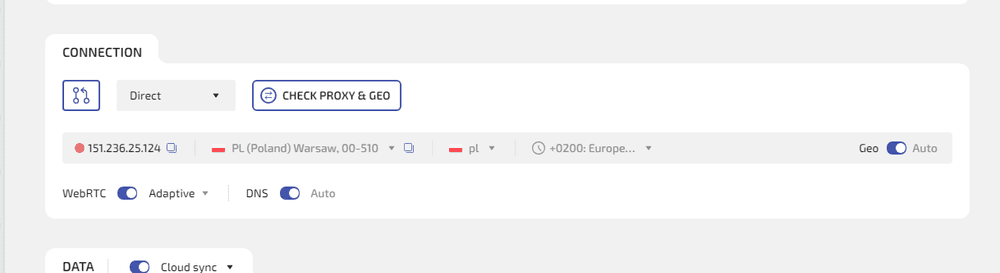
Step 3a. If entering the proxy manually: select the connection type in the dropdown (SOCKS5, HTTP, SSH, etc.). In the field next to it, enter the details in the format host:port@login:password.
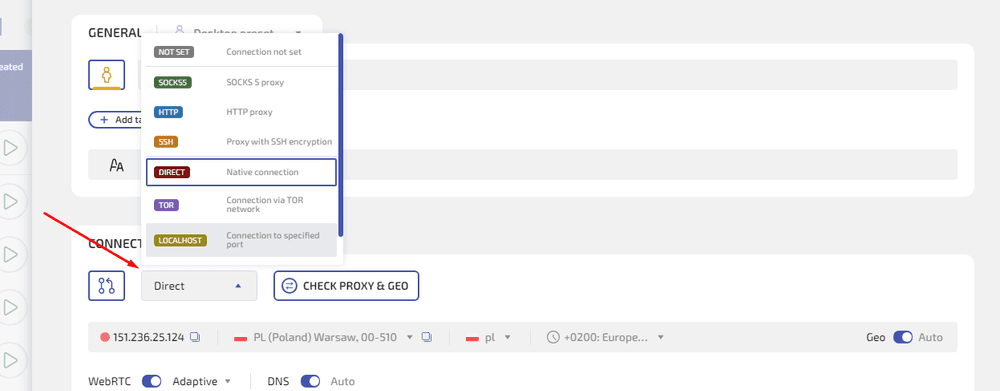
Step 3b. If selecting from the Proxy Manager: click the icon to the left of the dropdown. Select the proxy you need from the list.
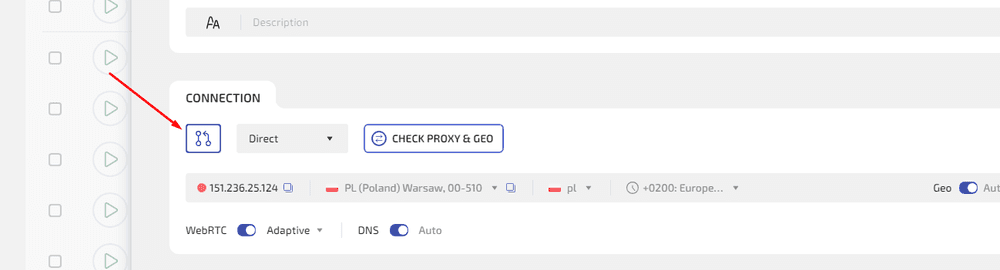
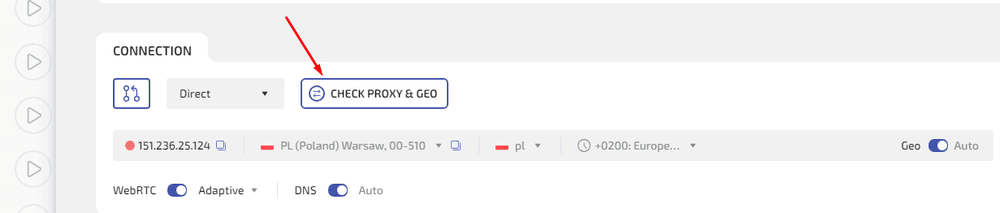
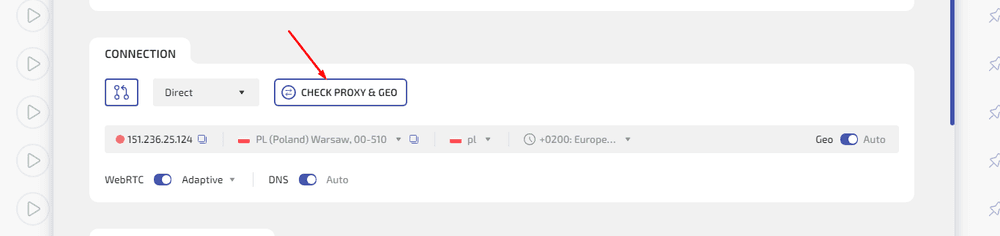
Step 4. Click CHECK PROXY & GEO — the system will verify the proxy and show the IP, country, city, and timezone. The profile does not launch at this step.
Step 5. Click SAVE or SAVE & RUN to save and immediately launch the profile.
Saving Proxies in the Proxy Manager
The best approach if you have many proxies or work with a team. Add all proxies once — then quickly assign them to profiles.
Step 1. Click the PROXY button in the top toolbar. The Proxy Manager will open.

Step 2. Click NEW PROXY to add a proxy manually.
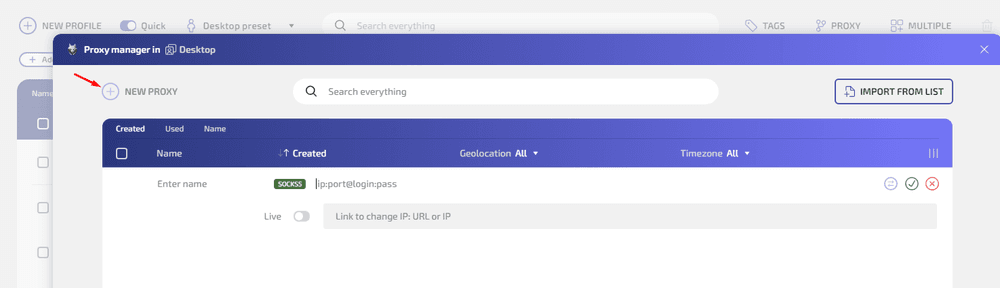
- Enter a name (for easy searching)
- Select the type (SOCKS5, HTTP, etc.)
- Enter the details in the format
host:port@login:password - If needed, enable Live — a field for the IP rotation link (relevant for mobile proxies with rotation)
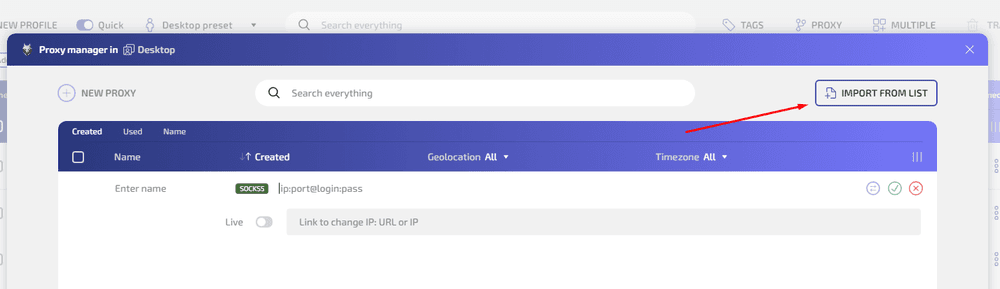
Step 3. Or click IMPORT FROM LIST for bulk import — paste a list of proxies line by line.
Step 4. Once added, proxies are available for selection via Method 1 and Method 2 — by clicking the proxy manager icon in the profile row or in the edit form.
Wade Built-In Proxies — How to Connect and Top Up
Wade Proxy — WADE X’s own clean proxies with payment for traffic. Available on all plans.
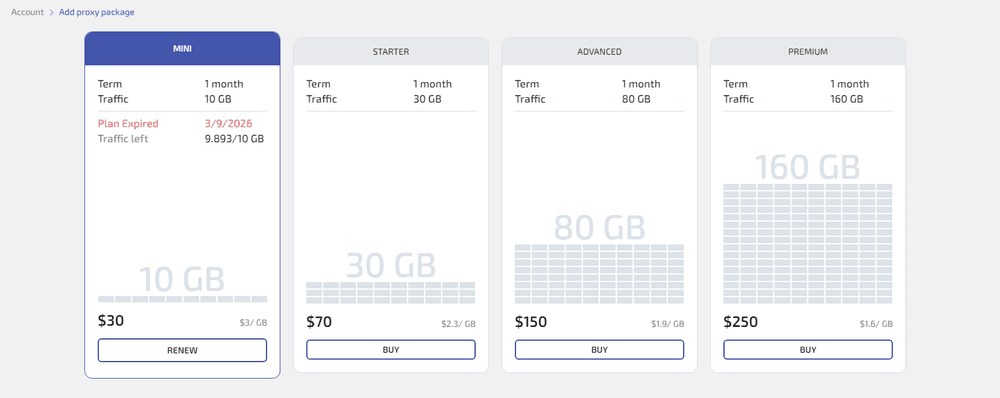
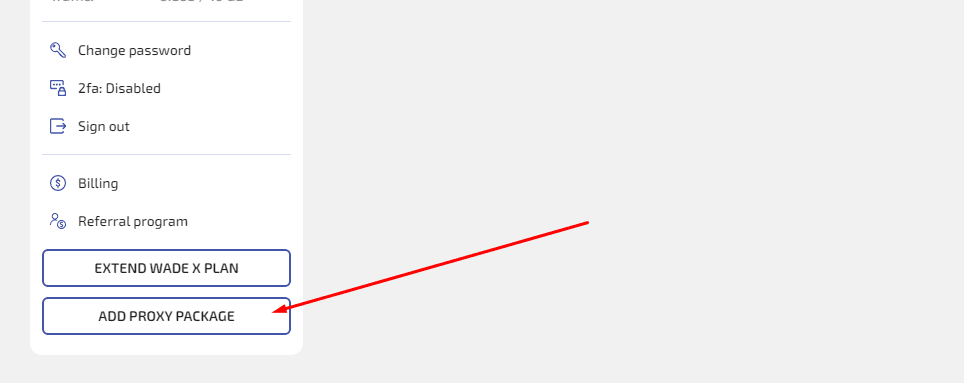
The proxy purchase button is located below the WADE X plan renewal button.
How to use:
Step 1. Click the connection type in the profile row or open Edit profile → CONNECTION.
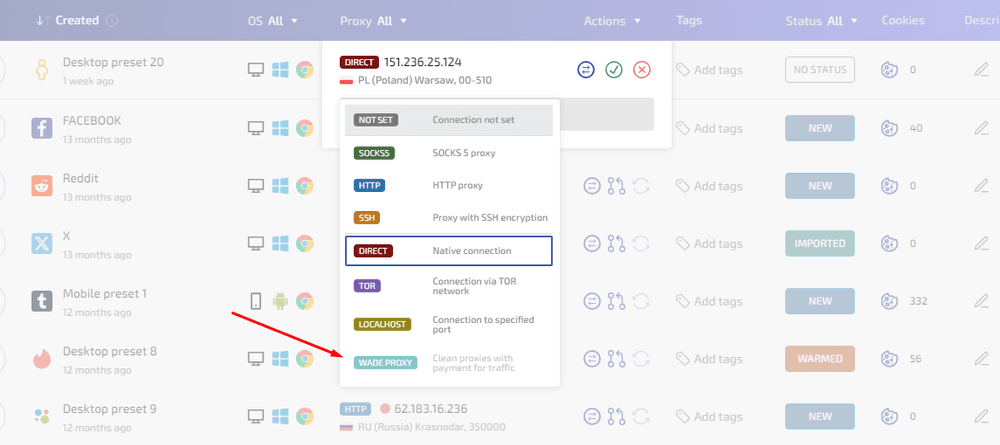
Step 2. Select the WADE PROXY type (you may need to scroll down in the list).
Step 3. Select a country and city from the available locations. 190+ countries available.
Step 4. Save the profile.
Balance and usage statistics can be viewed in the account under Account License (the main account tab).
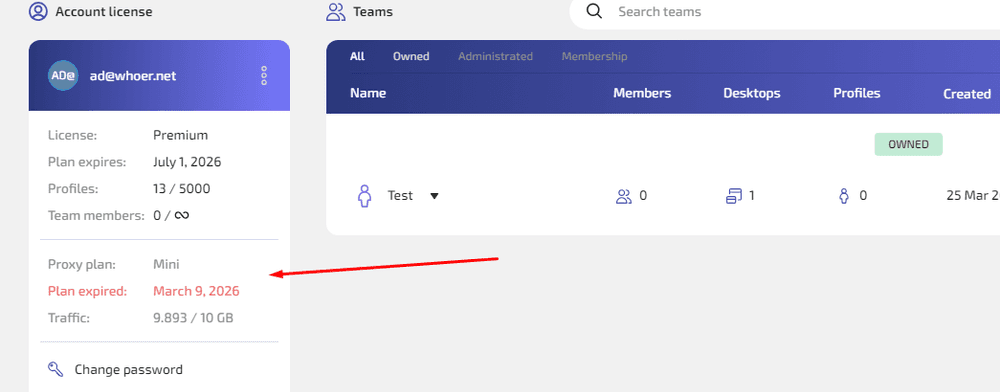
Unused Wade Proxy traffic does not expire when your subscription renews. If you stay on the same plan, any remaining traffic carries over and is added on top of the new package. If you switch to a different plan, the leftover traffic is not lost either — it stays on the previous package and becomes available again if you return to it.
Proxy Connection Format
Standard format for manual entry:
host:port@login:password
Example:
175.110.115.169:443@username:password
How to Check a Proxy in WADE X: Quick Check and IP Reputation
Quick check without launching the profile
In the profile edit form, click CHECK PROXY & GEO — it will show the IP, geolocation, and proxy status. Hotkey from the main list: Ctrl+E.
Full check
Launch the profile and visit Whoer.net inside it — the proxy IP should be displayed, not your real IP. It will also show geolocation, WebRTC, and DNS.
IP reputation check
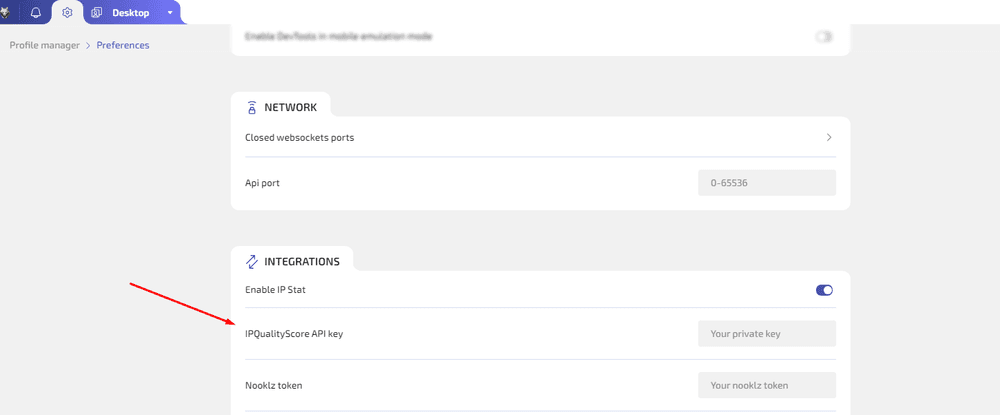
Register at ipqualityscore.com, get an API key, and add it in WADE X Settings — you can then check IP cleanliness directly in the interface.
Proxy Not Working in WADE X: Causes and Solutions
“Added a proxy, IP didn’t change”
- Restart the profile
- Check that the connection type is not DIRECT
- CHECK PROXY & GEO — the proxy may not be working
- If a VPN with split tunneling is enabled — it may be intercepting browser traffic, bypassing the proxy. Disable split tunneling or remove chrome.exe from its list
“Proxy works in another browser but not in WADE X”
- Check the proxy type — you may have selected the wrong one (HTTP instead of SOCKS5 or vice versa)
- Check whether antivirus is blocking the connection — add WADE X to exceptions
- Close proxifiers (Proxifier, SocksEscort) — they may conflict
“Proxy works in one profile but not in another”
Most likely it’s a profile settings issue — check the connection type and proxy string format in the problematic profile.
Signs of a bad proxy:
- Timezone does not match the IP geolocation
- High fraud score on IPQS
- IP is on spam blacklists
If you need help with setup — contact WADE X support: t.me/WadeXTeam or [email protected]