Chrome Headers, Google Sign-In, and Why DICE Matters
How Desktop Identity Consistency (DICE) keeps Google account state consistent in Chrome, how to inspect its headers, and how to troubleshoot sign-in issues.
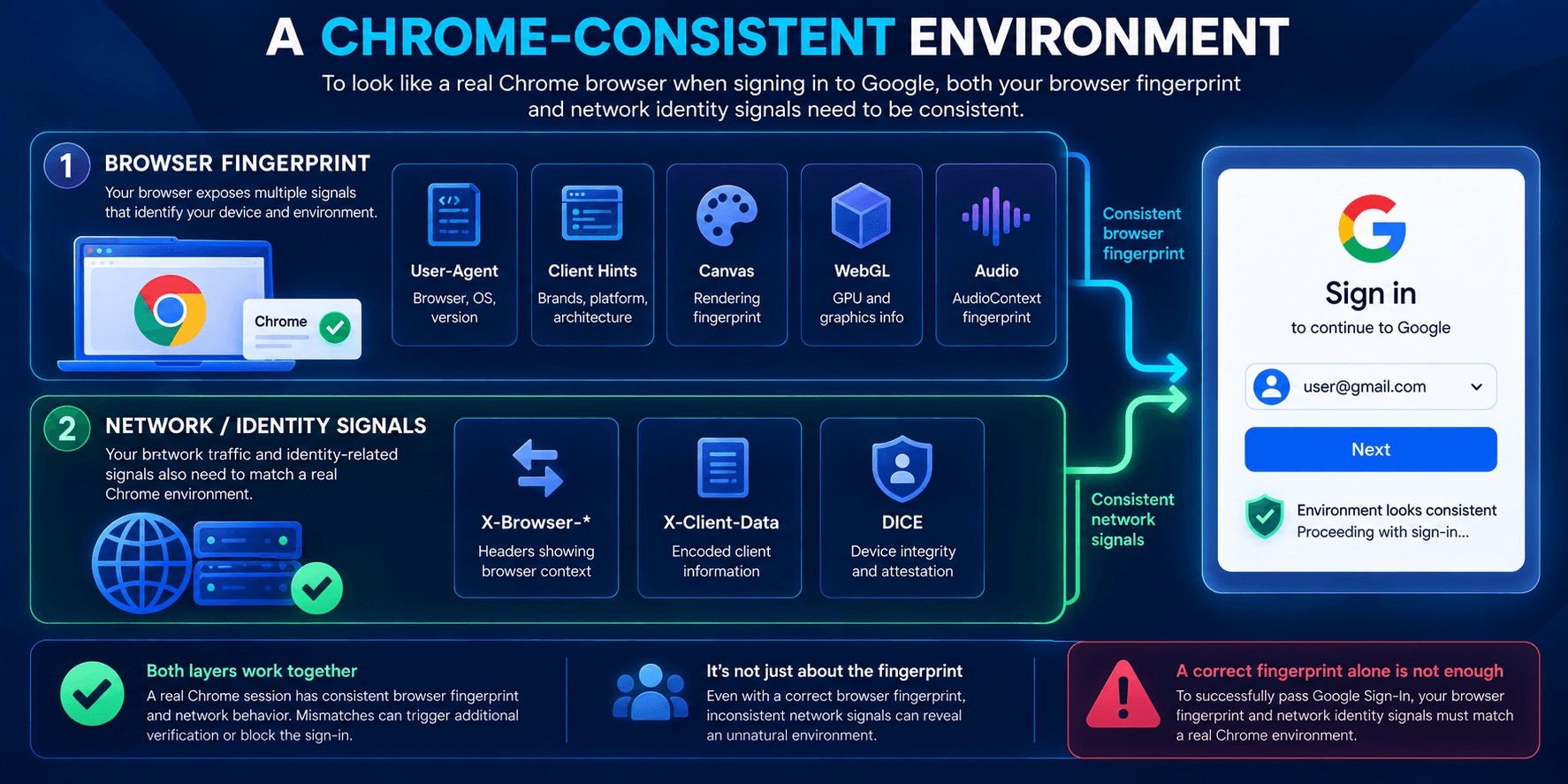
When evaluating an antidetect browser, the focus used to be primarily on masking the User-Agent and browser fingerprint signals such as Canvas, WebGL, and Audio. Today, network-level behavior matters just as much.
One important example is DICE (Desktop Identity Consistency): the mechanism behind certain Chrome headers and the handling of Google account state. This aspect of browser behavior cannot be assessed from the browser fingerprint alone.
In other words, what matters is not just the fingerprint a browser presents, but also how it behaves when making network requests.
In this article, we’ll cover:
- which HTTP headers are associated with DICE;
- what DICE does;
- why simply adding a few headers is not enough;
- how to check your browser’s behavior;
- what to look for when choosing an antidetect browser such as WADE X.
This article focuses on behavior observable in the browser and its network requests. It does not describe Google’s internal risk-scoring systems or guarantee any particular sign-in outcome.
Which Headers Does DICE Use?
X-Chrome-Id-Consistency-Request / …-Response (DICE)
This pair of headers is used by DICE. Their names and purpose can be checked in the Chromium source code (signin_header_helper.cc).
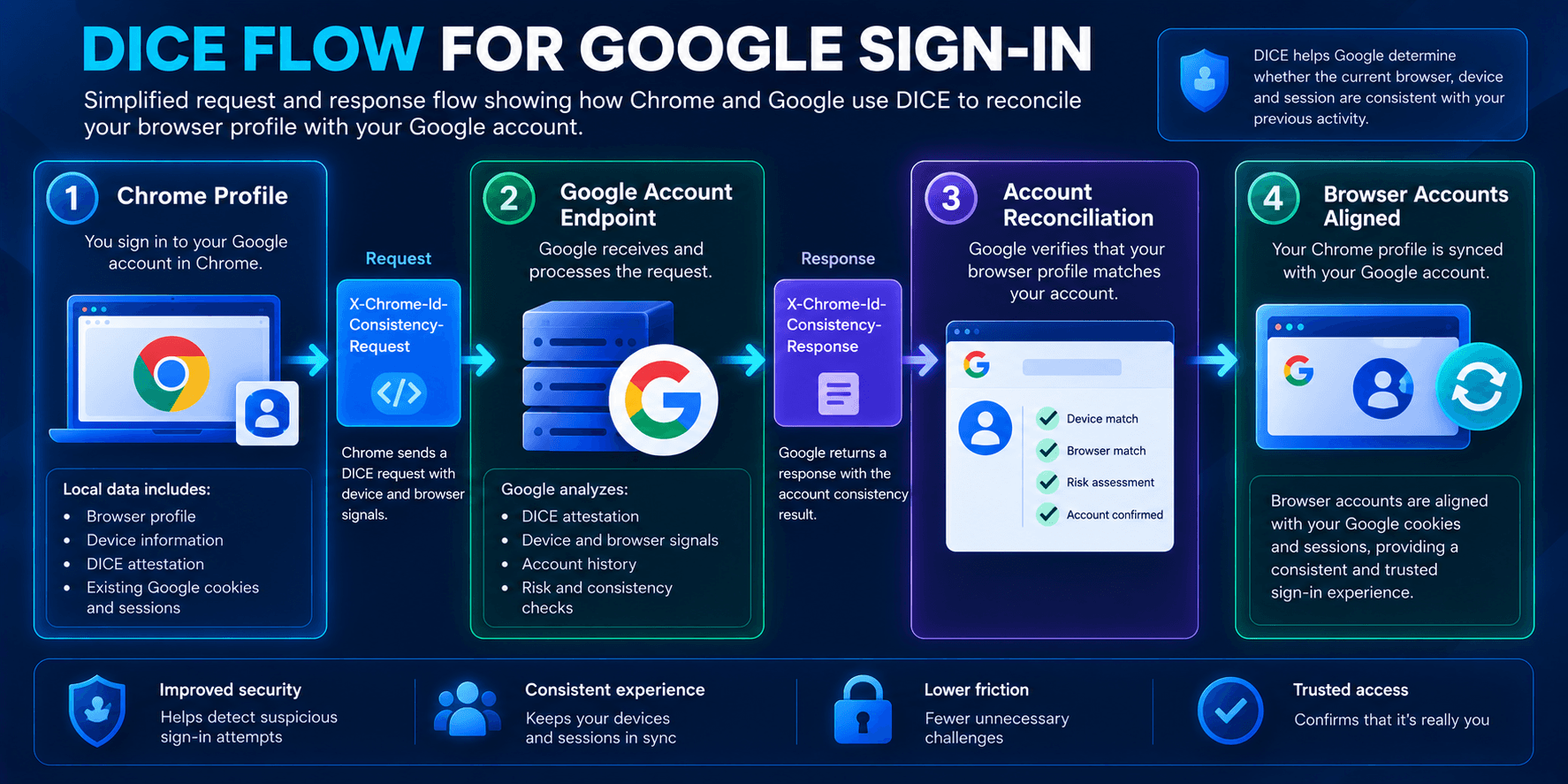
In simplified terms, Chrome sends X-Chrome-Id-Consistency-Request when interacting with relevant Google Account endpoints, such as accounts.google.com.
The server may return X-Chrome-Id-Consistency-Response, which Chrome then processes as part of its account-consistency mechanism.
The goal is to keep the accounts known to the browser consistent with those represented by Google’s cookies and sessions.
If these headers are sent in the wrong context or the response is handled incorrectly, sign-in behavior may differ from that of standard Chrome.
What Is DICE?
DICE (Desktop Identity Consistency) is a mechanism for maintaining consistent account state between desktop Chrome and Google services. Signing in to Google on a website can associate that account with Chrome, but Chrome Sync is not enabled automatically: the user must separately consent to syncing. This distinction is explained in a Chromium developers' discussion. The handling of DICE header parameters is also documented in Chromium’s DiceHeaderHelper implementation.
When DICE is missing or only partially implemented, a browser may resemble Chrome at the fingerprint level while behaving differently in its network requests and account-identity handling.
An incomplete implementation may cause discrepancies between the account state maintained by the browser and the state recognized by Google. Depending on the scenario, these may appear as repeated sign-in prompts, trouble retaining an authenticated session, or inconsistent switching between accounts. However, these symptoms alone are not enough to identify the cause without further testing.
CAPTCHA challenges should be assessed separately: encountering one does not, by itself, indicate a DICE error. Additional verification can depend on account status and history, cookies, IP address, proxy configuration, and other network conditions.
Do not confuse this browser-related use of DICE with Device Identifier Composition Engine, a separate term used in hardware security.
Why DICE Matters for Antidetect Browsers
Headers and Network Behavior
HTTP headers are sent with network requests, before JavaScript on the page runs.
As a result, differences in DICE header exchanges may be observable independently of browser fingerprint signals such as Canvas, WebGL, and Audio.
Signing In Like Chrome
If an antidetect browser handles DICE differently from standard Chrome, account-state synchronization may also behave differently. Whether that difference affects a particular sign-in flow needs to be tested separately.
Meanwhile, the browser fingerprint itself may still look entirely plausible.
Behavior Matters More Than a Feature Checkbox
Simply adding DICE headers is not enough.
What matters is:
- when the headers are sent;
- which endpoints receive them;
- whether the header exchange matches the conditions of the specific sign-in flow;
- how
…-Responseis processed; - how account state is maintained.
How to Check Your Antidetect Browser
You can inspect the relevant headers in DevTools and evaluate sign-in behavior using a reproducible test scenario:
- Record the test conditions. Note the antidetect browser and engine versions, operating system, profile settings, connection type, and proxy configuration. Record whether the account is already signed in and which cookies or sessions are retained. Never share credentials or session-cookie values.
- Prepare the profile. Create a fresh profile, launch it, close it, and reopen it. If you’re testing an existing profile, preserve its state so you can repeat the test.
- Open DevTools → Network and visit
accounts.google.com. Inspect relevant requests forX-Chrome-Id-Consistency-RequestandX-Chrome-Id-Consistency-Responsewhere those headers are expected. A missing header in a single request is not, by itself, evidence of a bug. - Test the sign-in flow. Record when repeated sign-in prompts, lost sessions, or CAPTCHA challenges appear. You can also check the account’s device list, but a displayed device name alone does not verify correct DICE behavior.
- Compare with standard Chrome. Repeat the same authorized scenario in regular Chrome, keeping account, cookie, and network conditions as comparable as possible. Differences between profiles or changes in IP address may affect the result.
- Check reproducibility. Repeat the scenario and compare network logs after removing tokens, cookies, and other sensitive information.
If sign-in issues persist, compare your header observations with the account state, cookies, proxy settings, and network conditions. Even a reproducible difference between browsers requires further investigation before its cause can be established.
Common DICE Implementation Issues
Headers Without Working Account Consistency
A browser may technically send a DICE header without correctly implementing the underlying account-consistency behavior.
For example, …-Response might be ignored or not used in subsequent account-state processing.
In that case, the presence of headers does not guarantee consistent account handling. If sessions or multi-account workflows behave unpredictably, also rule out issues with cookies, profile settings, the network, and the account itself.
How to Choose an Antidetect Browser
1. Google Sign-In
Look at how the browser implements DICE (X-Chrome-Id-Consistency-Request / X-Chrome-Id-Consistency-Response) and handles account state.
During a trial, visit accounts.google.com, inspect relevant requests in DevTools, and see how reliably sign-in works.
Pay attention to sign-in stability and whether account state persists. A successful sign-in alone, however, does not validate the entire DICE implementation.
2. Realistic Browser Fingerprints
Check that the following parameters are consistent:
- User-Agent;
- Client Hints;
- platform and operating system;
- device pixel ratio (DPR) and screen properties;
- WebRTC;
- fonts;
- media devices;
- time zone;
- locale.
Ready-made profiles for Windows, macOS, Android, and iOS, with options for fine-tuning, can be useful.
3. Profiles and Team Collaboration
Look for:
- session isolation;
- backups;
- profile transfers between devices;
- role-based access controls;
- activity logs for team workflows.
4. Proxies and Networking
An antidetect browser should work reliably with residential and mobile proxies, support the required authentication methods, and handle network changes correctly.
Useful built-in diagnostics include:
- ASN;
- DNS;
- HTTP headers;
- IP address and geolocation.
5. Profile Warm-Up and Automation
Depending on your workflow, useful features may include:
- macros and automation;
- automatic scrolling;
- configurable delays;
- a cookie manager;
- importing and exporting sessions and bookmarks.
6. Updates and Support
Check how frequently Chromium/Blink is updated, whether a changelog is available, and how responsive technical support is.
7. Pricing and Limits
Review:
- trial availability;
- profile limits;
- team restrictions;
- additional traffic or feature limits;
- pricing transparency.
Conclusion
When comparing an antidetect browser with standard Chrome, look beyond the browser fingerprint. Network behavior and account-state handling are also important for assessing technical consistency without making unsupported assumptions about Google’s internal risk scoring.
Key considerations include when DICE requests are sent, how DICE responses are processed, and how account state is maintained within a browser profile.
DICE operates at a different layer from familiar browser fingerprint signals such as User-Agent, Client Hints, Canvas, WebGL, and Audio.
Consistency across the browser fingerprint, network behavior, and account state can help a profile behave more like standard Chrome, but it cannot predict the outcome of an individual sign-in attempt.
That outcome also depends on the account’s state, saved sessions, and connection conditions.