From Browser Profile to Script: How Automation Works in an Antidetect Browser
Learn how browser automation works in WADE X, from presets and profile creation to local API access and connecting Selenium or Puppeteer.

Alexey Mironov
Author covering privacy and digital security
If you regularly create browser profiles, launch them, and repeat the same actions on websites, some of that work can be automated. WADE X provides a local API, an interface that lets another program send commands to the application.
To understand browser automation, it helps to know what the browser handles and what you need an external program for. We’ll start with the basic workflow, then look at how it works in WADE X.
How browser automation works
Think about how you normally use WADE X: you select a profile, launch the browser, open a website, click buttons, and fill in forms. With automation, some of those steps are carried out by predefined commands. The browser profile itself stays the same, with its own settings and browser data. What changes is how you control it: instead of doing everything by hand, you let a program perform some of the actions.
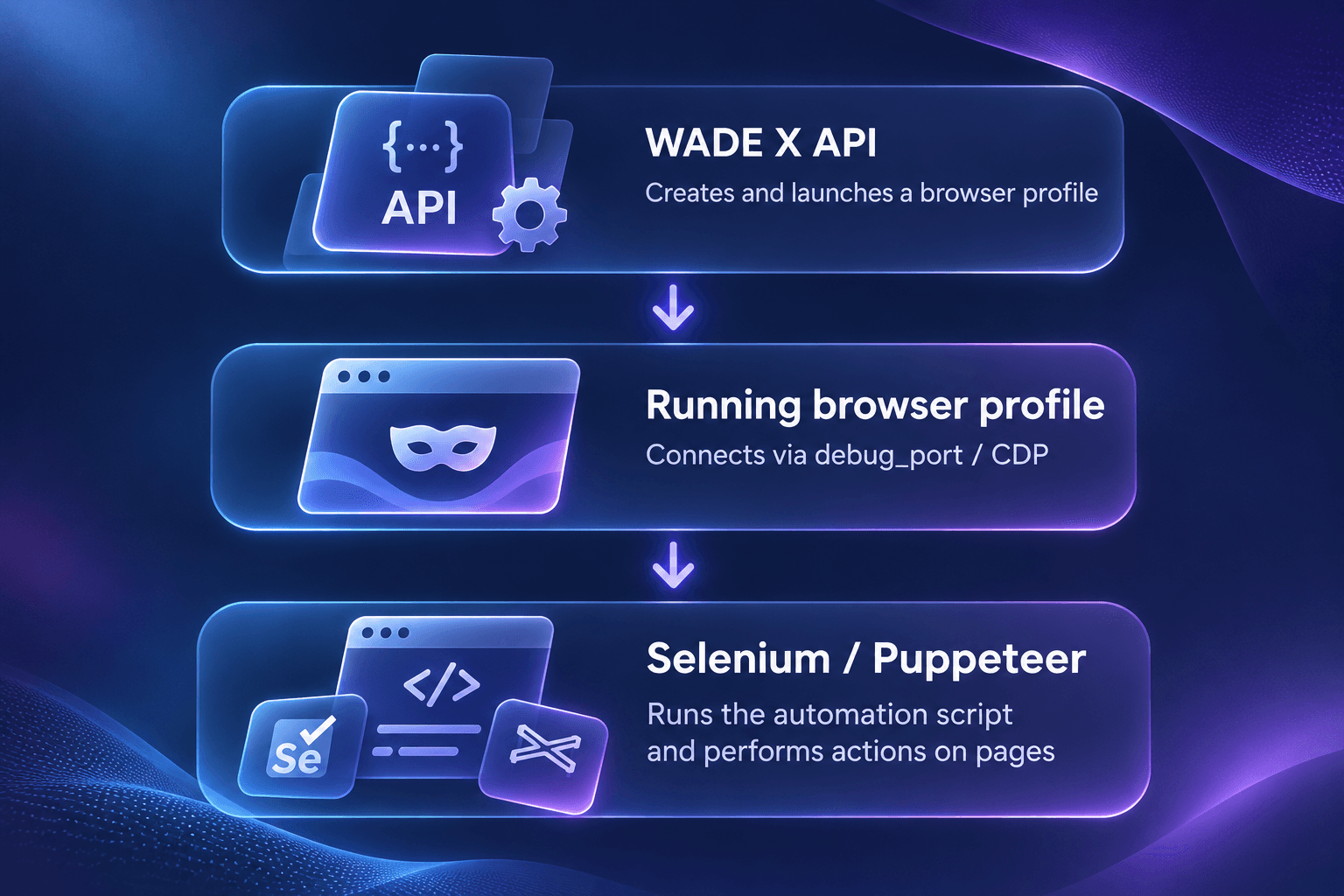
There are two parts to this process. First, a program sends a request to the local WADE X API to create or launch a profile. Once the profile is running, an automation tool connects to the browser and can navigate to pages, click elements, and enter text. In other words, the API handles profile operations, while a script controls the sequence of actions on a website. The browser doesn’t decide what to do on its own. You need to define those steps in your script. That’s the setup we’ll walk through below.
Tools used for browser automation
To perform actions inside a running browser, a script needs an automation tool. Selenium and Puppeteer are two widely used options. They let scripts open pages, find elements, click buttons, and fill out forms. They’re used for more than website testing: common tasks include managing multiple accounts, repeating routine actions, handling bulk sign-ups, scraping data, checking pages, and other work that would take much longer to do manually.
Selenium is often used for automated website testing and Python-based scripts, although it supports other programming languages too. Puppeteer is mainly used with JavaScript to control a browser from code. Both can run multi-step workflows inside a profile, whether that’s moving through a set of pages, working with accounts, or collecting data. In WADE X, they connect to an already running browser profile. The profile itself is created and launched through the WADE X API. We’ll get to the connection process shortly.
What you need to use the WADE X API
API access in WADE X starts with the Advanced plan, which includes 500 profiles and costs $160 per month on monthly billing. You can check the current subscription terms on the WADE X pricing page.
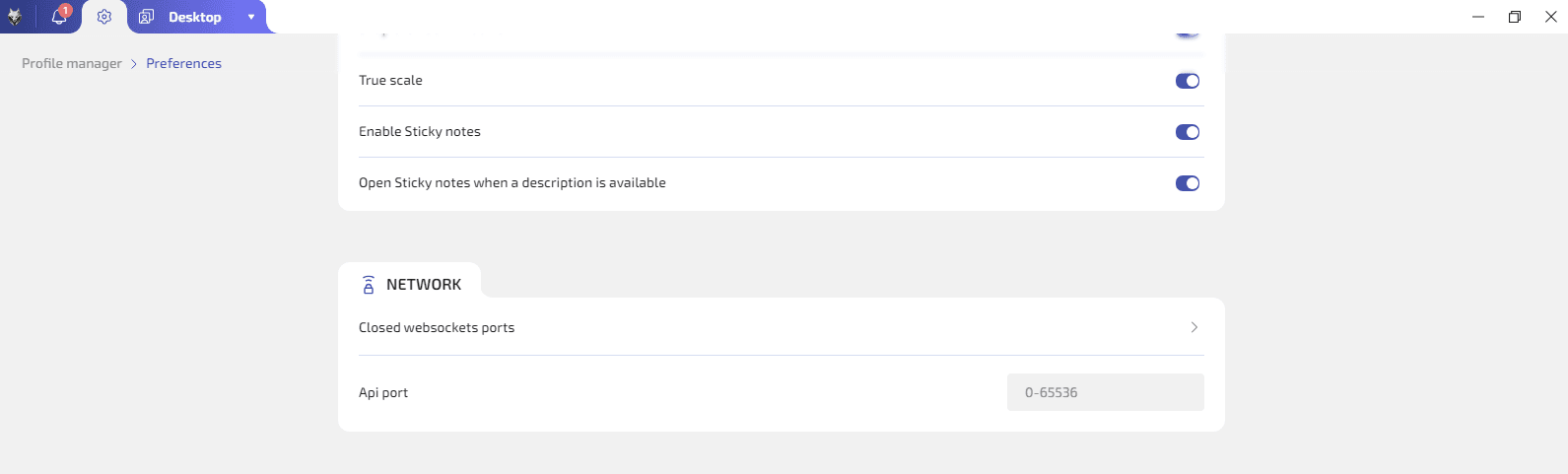
The local API requires WADE X to be running and you to be logged in. Open Settings, go to Network, and enter an available port in the Api port field. The API won’t work until a port is set. If the port is already in use or the API server fails to start, the application will display a notification.
The requests in the examples below are sent from the same computer running WADE X. The address 127.0.0.1 refers to the machine sending the request. If your script runs on a different computer, that address won’t automatically reach the computer running WADE X. Requests use an address such as http://127.0.0.1:{YOUR_PORT}/..., where YOUR_PORT is the port you set in the application. Port numbers shown in documentation examples aren’t required values for your own setup. To send requests, you’ll need an HTTP client or a script. The request formats and examples are available in the WADE X API documentation.
Presets: configure first, create the profile second
In WADE X, a preset is a saved set of settings for new profiles. It can define the configuration, local or cloud data storage, start pages, bookmarks, and extensions. If you regularly create profiles with similar settings, a preset saves you from setting everything up again each time.
For example, say you often need profiles with a particular operating system, the same start page, and a specific set of extensions. You configure these options in a preset. When you create a Quick Profile through the WADE X API, it uses the active preset. Any missing browser fingerprint parameters are generated automatically based on that configuration. This describes how profile creation works in WADE X, not a rule that applies to every browser with an API.
Before creating a profile, check which preset is active. You can select it in the WADE X interface, and there is also a separate API operation for switching presets. If you have both mobile and desktop presets, for example, selecting the wrong one means your new profile won’t have the starting configuration you intended.
Creating a profile and getting its UUID
Once the API is configured and the preset is selected, you can send a POST /sessions/create_quick request. WADE X creates a Quick Profile in the current workspace and returns information about it, including its name and uuid.
If you’re creating profiles through your own bot and the result isn’t what you expected, start with a simple check. Confirm that the right preset is active, then send the profile creation request separately from the bot. Comparing the results can help you work out whether the problem also happens outside your main script.
Starting a profile: Api port vs. debug_port
Next, send POST /sessions/start with the UUID of the profile you created. This request has two optional parameters: headless, which starts the browser without displaying its window, and debug_port. If you leave them out, the browser starts with its window visible and a port for automation is assigned automatically.
It’s easy to confuse the two ports. You set Api port in the WADE X settings and use it to send commands to the application, such as creating, starting, and stopping profiles. debug_port belongs to a running profile and lets an automation tool connect to that browser.
After a successful launch, WADE X returns the debug_port and UUID. Use the port returned for that launch, not a placeholder copied from someone else’s example. If the Api port is configured correctly but Selenium or Puppeteer still can’t connect, check which debug_port you’re passing to the tool.
Connecting Selenium or Puppeteer to a profile
In WADE X, these tools don’t create the browser profile in place of the local API. The API starts the profile first. Selenium or Puppeteer then connects through the Chrome DevTools Protocol (CDP), using the returned debug_port. Once connected, the tool can work with pages in that profile.
The official WADE X guide includes two basic examples. Selenium connects to the running profile through its debugging address and uses ChromeDriver, while Puppeteer connects using browserURL. In both examples, the script opens example.com and reads the page title. It’s a simple way to see whether the connection has been established and commands are running inside the correct profile.
To try the examples, first install the required library: Selenium for Python or Puppeteer for JavaScript. Selenium also needs ChromeDriver. The WADE X documentation links to versions for Windows and macOS. In the sample code, replace your/path/to/chromedriver.exe with the actual path on your computer. In both examples, use the debug_port returned when you launched your profile. WADE X also lists Playwright as a supported tool, but the main API guide provides step-by-step examples for Selenium and Puppeteer. If you’re new to automation, start by testing a connection with one of those documented examples.
AI can be useful when you’re getting started, even if you’ve never worked with Selenium or Puppeteer. You can paste an example from the WADE X documentation into an AI assistant and ask it to explain each line, identify which values need to be replaced, or suggest possible causes of a connection error. It can also help you draft a simple script for your task. Check the output carefully, though: an AI assistant may suggest a WADE X API method that doesn’t exist or use incorrect parameters. Use the official documentation as your reference and test any script on a test profile first.
Stopping a profile
When your script finishes, it’s important to distinguish disconnecting Puppeteer from closing the browser. browser.disconnect() ends the Puppeteer connection but leaves the browser running. browser.close(), which appears in the WADE X documentation example, closes the browser and its pages. If the profile is still running and you want to stop it through the WADE X API, send POST /sessions/stop with that profile’s UUID in the request body.
The workflow is straightforward: select a preset, create a profile with create_quick, get its UUID, start it, obtain the debug_port, connect Selenium or Puppeteer, and run your script. Then end the automation tool’s session. If the profile remains open, you can stop it through the API. Managing the profile and controlling its pages are still two separate parts of the process.
What WADE X handles, and what your script handles
The API lets you connect automation to a browser profile, but it doesn’t decide which actions the script will take or how natural those actions will look. When you use the browser manually, you determine the sequence yourself. With automation, that sequence comes from the script.
It helps to troubleshoot these parts separately. First, check that the API creates and starts the correct profile and that your automation tool connects to its debug_port. Then check the script: which pages it opens and which actions it performs. A problem at one level doesn’t necessarily mean something is wrong at the other.
To get familiar with the WADE X API, one profile and the test page from the official guide are enough. That lets you see how the pieces fit together without bulk operations, complex configuration, or assumptions about how other websites will behave.