DNS, WebRTC, and TLS Leaks: How to Check Them
Learn the differences between DNS Leak, WebRTC Leak, and TLS Fingerprint and how to check your network environment using Whoer, IPleak, DNSLeaktest, and BrowserLeaks.

Alexey Mironov
Author covering privacy and digital security
When using a VPN or Proxy, some network data may not be transmitted the way you expect. For example, DNS requests may go through an unintended server, while WebRTC can expose additional network information. TLS works differently: its parameters are part of the connection itself and can be used to create a TLS Fingerprint.
Let’s look at how these mechanisms differ, how to check them, and which tools can help identify potential issues.
DNS Leak
DNS (Domain Name System) translates domain names into IP addresses. When using a VPN, DNS requests should normally be handled according to the VPN connection settings.
However, due to the operating system, VPN client, or network configuration, DNS requests may sometimes continue to go through your Internet Service Provider’s DNS servers. This is known as a DNS Leak.
As a result, your ISP may potentially see DNS queries even though the main traffic is routed through the VPN. This does not mean that the content of HTTPS pages becomes exposed.
To reduce this risk, use a VPN with DNS Leak Protection and verify which DNS resolvers handle requests after connecting. Secure DNS, including DNS over HTTPS (DoH), can encrypt DNS queries between the browser and a resolver, but changing the resolver or enabling DoH does not guarantee that DNS traffic follows the VPN or a profile-specific Proxy. The actual route depends on the browser, operating system, Proxy type, and connection settings.
On Windows, ipconfig /all can show system network and DNS settings, while nslookup example.com can help identify the resolver used by that command. Neither proves how DNS requests are handled inside a particular browser profile. Browser-based DNS tests show which resolvers answer test queries, but do not establish the full network path. To confirm routing, examine the relevant browser and Proxy configuration and, when necessary, use connection logs or network captures.
WebRTC Leak
WebRTC (Web Real-Time Communication) is a browser technology used for video calls, voice communication, and direct data transfer.
To establish a connection, WebRTC works with network interfaces and ICE candidates. Depending on the browser and network configuration, these mechanisms may expose additional network information to a website.
For this reason, compare the IP addresses and ICE candidates visible through WebRTC before and after connecting to a VPN or Proxy. Run the test inside the specific browser profile you intend to use, since results can differ between profiles and network configurations.
Completely disabling WebRTC is not always necessary, as it may interfere with video calls and other browser-based services. In antidetect browsers such as WadeX, WebRTC should be considered together with Browser Fingerprint, Proxy, and IP Geolocation to keep the profile environment consistent.
TLS Fingerprint
TLS (Transport Layer Security) provides the secure HTTPS connection between a browser and a website.
When establishing a connection, the client sends a set of TLS parameters, including Cipher Suites and Extensions. Their combination can be used to create a TLS Fingerprint, including fingerprints generated using methods such as JA3 and JA4.
Unlike DNS and WebRTC leaks, a TLS Fingerprint is better understood as a characteristic of the connection rather than a conventional data leak. A server can use it as one of the signals for identifying the type of client making a request.
For example, if the User-Agent identifies the browser as Chrome but its TLS parameters differ significantly from those normally associated with that Chrome version, the mismatch may become an additional signal for anti-bot systems.
TLS negotiation is necessary for HTTPS, so the relevant question is which TLS characteristics the destination server observes. A Proxy that terminates TLS may change the observed fingerprint. TLS testing is separate from DNS resolver checks and WebRTC IP tests.
| Mechanism | What Happens | What a Website or Third Party May Observe | What to Check |
|---|---|---|---|
| DNS Leak | DNS queries use an unexpected resolver or route | A DNS resolver may receive queries outside the intended configuration | Compare observed resolvers and verify routing separately |
| WebRTC Leak | ICE candidates may reveal additional network information | IP addresses and candidate information exposed to the page | Compare visible candidates before and after configuration changes |
| TLS Fingerprint | ClientHello characteristics identify aspects of the TLS client | Cipher suites, extensions, and TLS fingerprint values | Check the fingerprint observed by the server and whether a Proxy changes it |
Top Services for Checking Leaks
After connecting to a VPN or Proxy, you can use several services to check your network environment. You do not need to use all of them, as each tool is useful for a different type of test.
1. Whoer
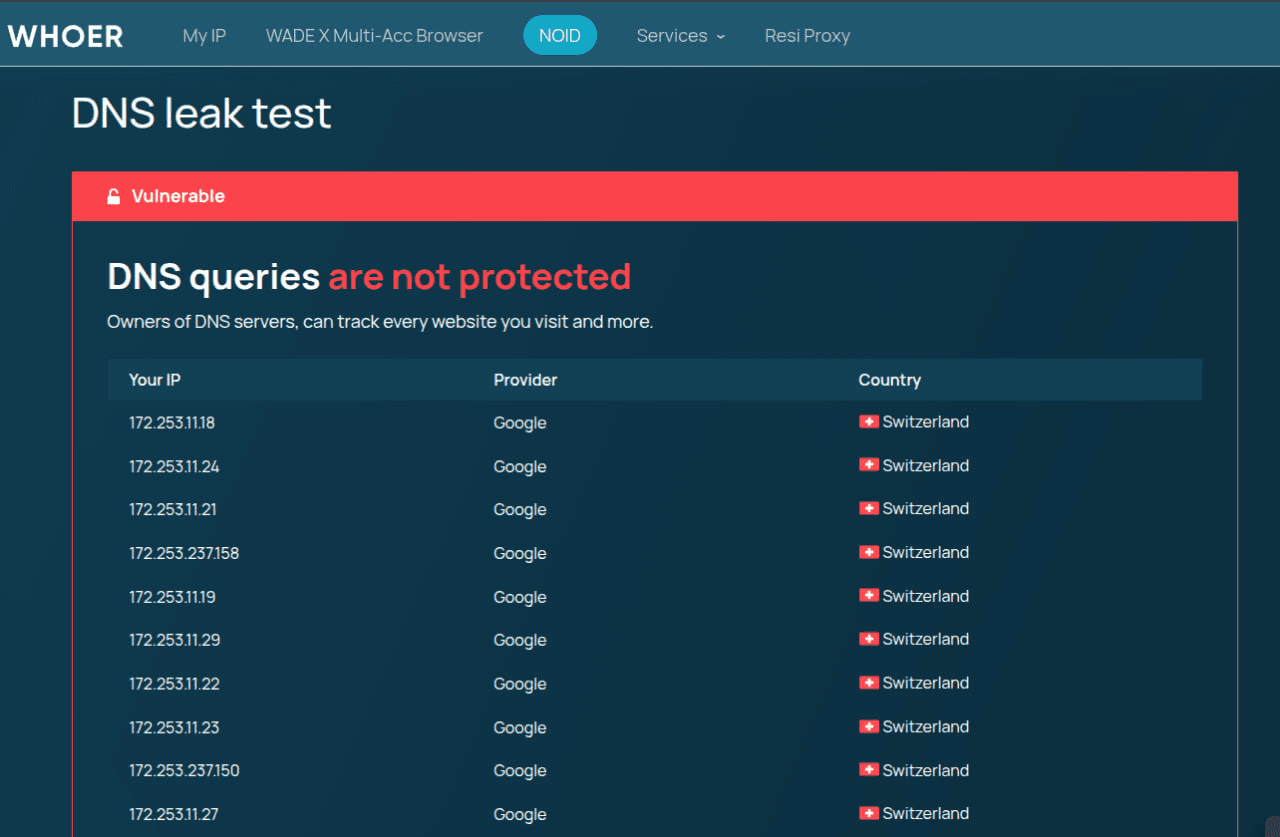
Whoer is suitable for a general connection check. It can show your public IP address, geolocation, ISP, and other network parameters.
For example, after connecting to WhoVPN, you can open Whoer and verify that the displayed IP address and geolocation match the VPN server you selected.
2. IPleak
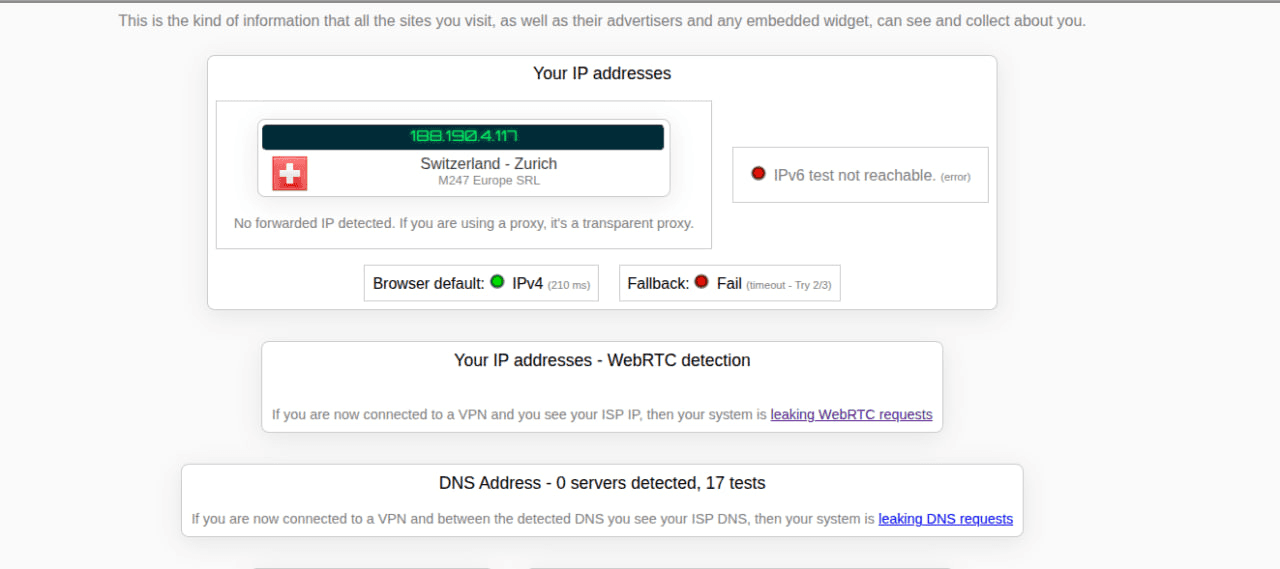
IPleak can be used to check your public IP address, DNS information, and data exposed through WebRTC.
It is useful for a broader test when you want to compare several network parameters after connecting to a VPN or Proxy.
3. DNSLeaktest
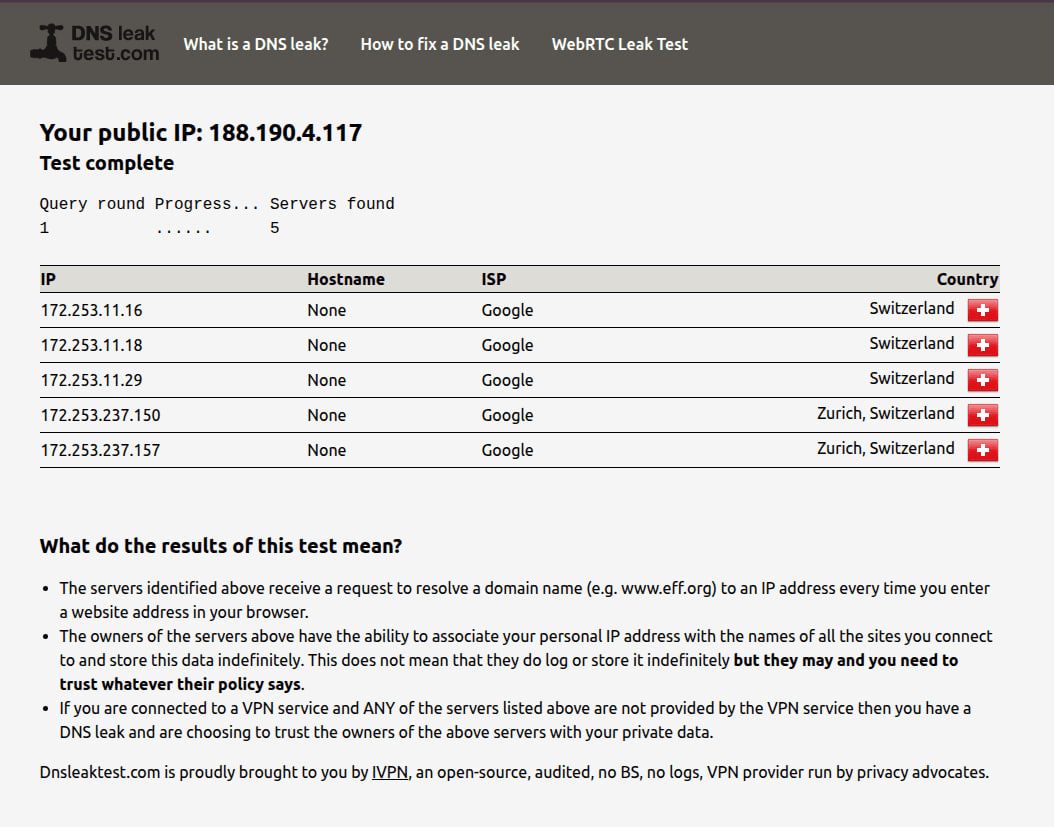
DNSLeaktest is primarily designed to detect DNS Leaks.
It reports the DNS resolvers observed during the test. If your original ISP resolver unexpectedly appears while the VPN is active, check your VPN, operating system, browser, and DNS configuration. The test does not, by itself, prove the route taken by every DNS query.
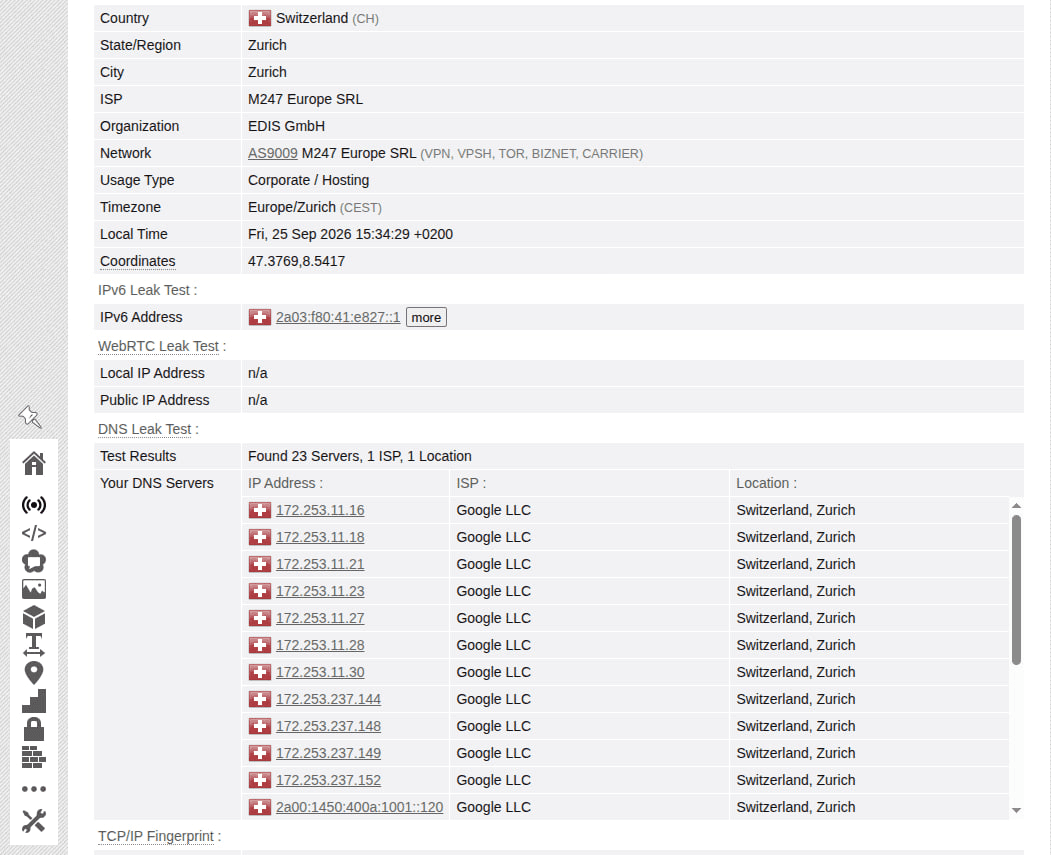
4. BrowserLeaks
BrowserLeaks provides tools for a more detailed analysis of your browser and network environment.
You can separately check IP and WebRTC information, while other sections of the service provide tests for DNS and various Browser Fingerprint parameters.
How to Check Your Connection
Use a before-and-after comparison rather than relying on a single result after changing settings.
- Record the baseline. Before enabling a VPN or Proxy, open Whoer and a DNS or WebRTC test in the browser you plan to use. Note the public IP address, observed DNS resolvers, and WebRTC IP addresses or ICE candidates. Record the browser and network configuration.
- Check the target profile. Open the specific browser profile, confirm its Proxy settings and any browser-level Secure DNS or DoH settings, and repeat the tests from inside that profile. A system-level
ipconfigornslookupresult cannot establish the behavior of this profile. - Apply the change and retest. Enable the intended VPN or profile Proxy, or change DNS settings, then rerun the same tests in the same profile. Compare the public IP, DNS resolvers, and WebRTC results against the baseline and your expected configuration.
- Investigate each result separately. For DNS, compare observed resolvers and verify the actual request route with suitable logs or network captures if routing is in doubt. For WebRTC, examine exposed IP addresses and ICE candidates. For TLS, use a dedicated test that reports the fingerprint observed by the destination server, and account for any TLS-terminating Proxy.
A changed public IP does not prove that DNS follows the same route. Likewise, a matching DNS resolver or TLS fingerprint does not establish that WebRTC exposes no unexpected network information.
Conclusion
DNS, WebRTC, and TLS describe different parts of a connection and require separate tests. DNS checks help identify unexpected resolvers, WebRTC tests reveal information exposed through ICE candidates, and TLS fingerprint tests characterize the HTTPS client as seen by a server. None of these results alone proves how the others behave.
For an initial connection check, you can use Whoer. For more detailed diagnostics, IPleak, DNSLeaktest, and BrowserLeaks can help examine individual network and browser parameters.
When using a VPN, Proxy, or antidetect browser, record a baseline, test the intended profile, and repeat the checks after changing settings. Resolver tests do not establish the complete DNS route, and no single tool guarantees the absence of network leaks.