How to Enable 2FA in WADE X: Step-by-Step Guide
Set up two-factor authentication in WADE X using an Authenticator App or Email and add an extra verification step to your account sign-in.
- 1.Where to Enable 2FA in WADE X
- 2.How to Enable 2FA via an Authenticator App
- 3.How to Enable 2FA via Email
- 4.How to Sign In to WADE X With 2FA via an Authenticator App
- 5.How to Check Whether 2FA Is Enabled
- 6.Which Should You Choose: Authenticator App or Email?
- 7.How to Change Your 2FA Settings
- 8.Conclusion
If you want to better protect your WADE X account, it’s a good idea to enable two-factor authentication, or 2FA. Once it’s activated, you’ll need not only your Email and Password to sign in, but also an additional one-time code.
WADE X offers two 2FA methods:
- Authenticator App — for example, Google Authenticator, Microsoft Authenticator, Authy, or another compatible app.
- Email — a verification code will be sent to the email address linked to your account.
Below, we’ll show you where to find this setting and how to configure each option.
Where to Enable 2FA in WADE X
First, open WADE X and click the account icon in the upper-left corner.
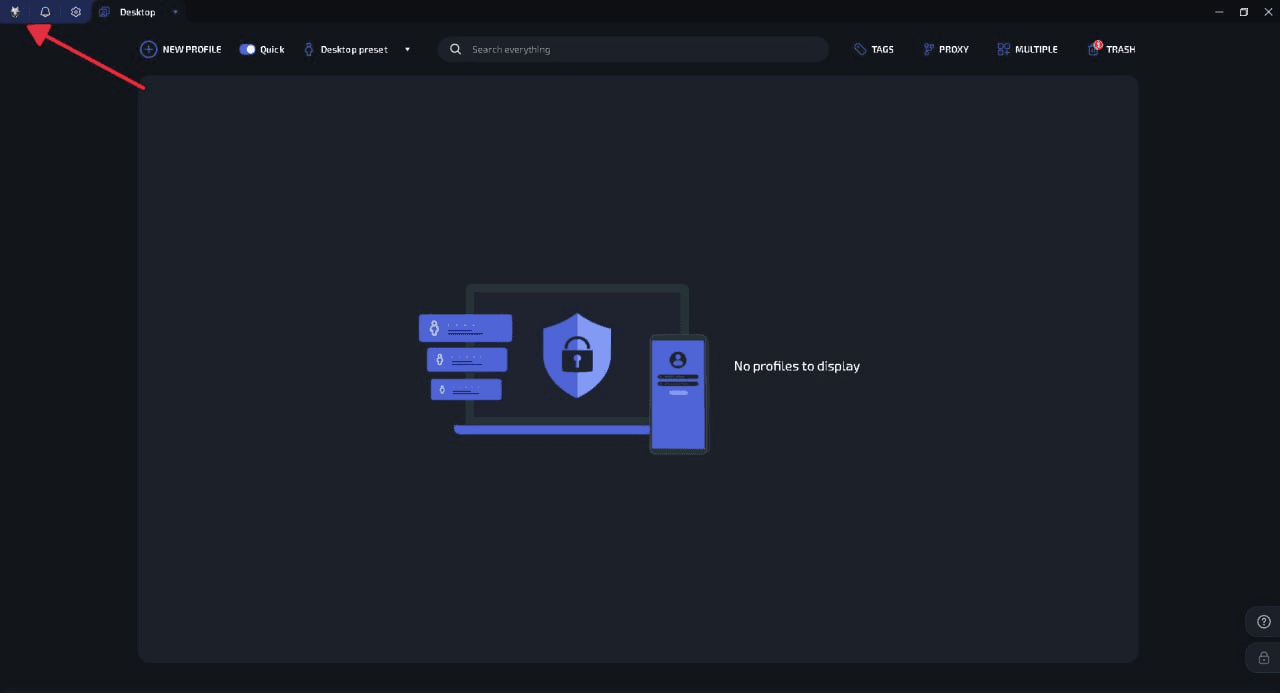
A section with your account and license information will open. In the left-hand menu, find 2FA: Disabled and click it.
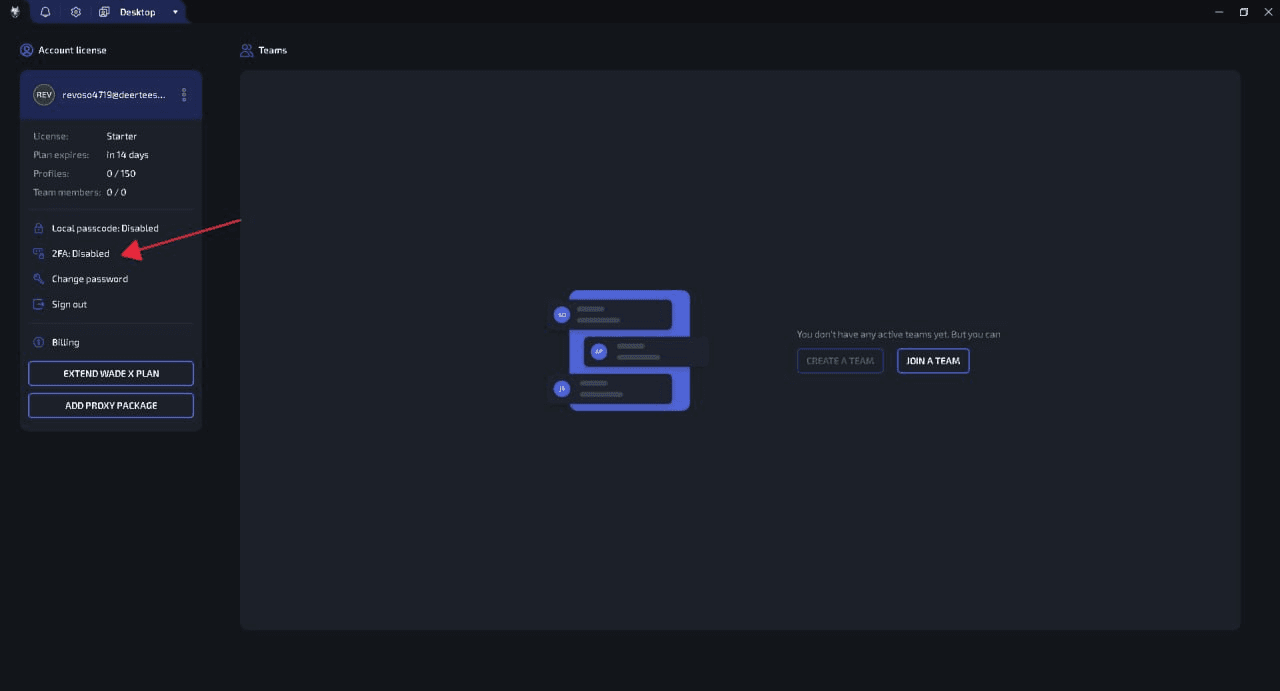
The Set up two-factor authentication window will appear. WADE X will give you two options:
Authenticator app — the code will be generated in a separate authenticator app.
Email — the code will be sent to the Email address linked to your account.
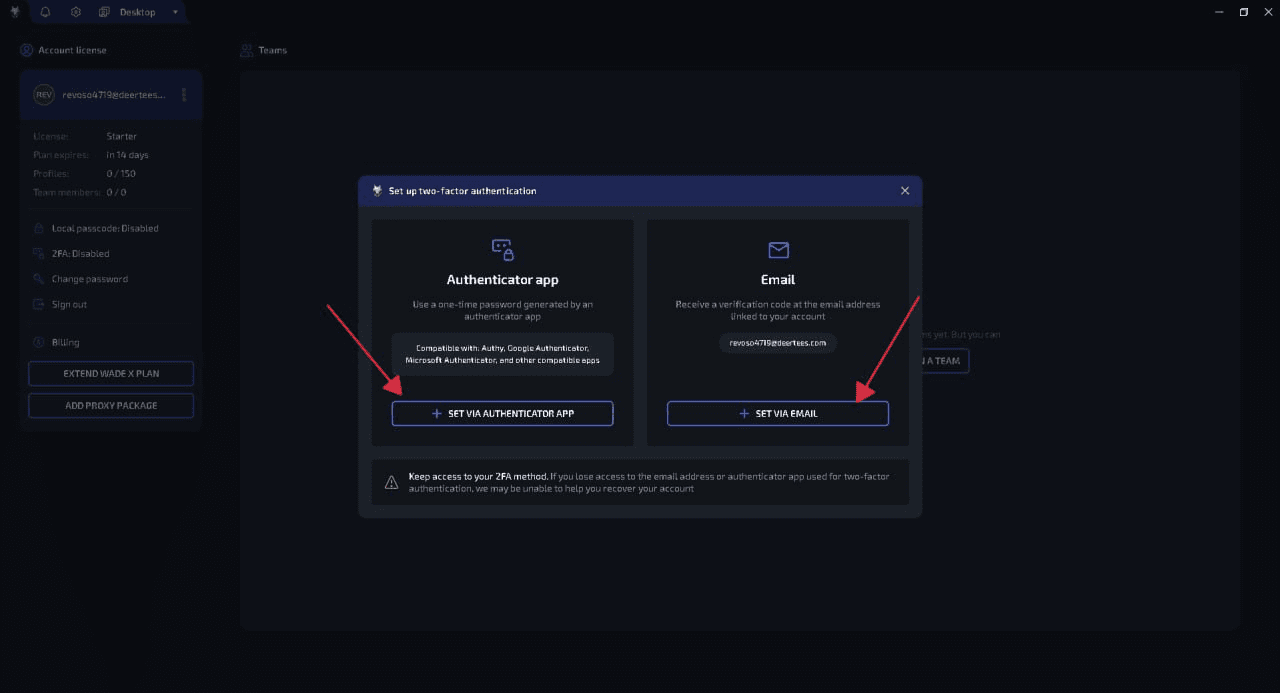
Now, all you need to do is choose the option that works best for you and complete the setup.
How to Enable 2FA via an Authenticator App
If you use Google Authenticator, Microsoft Authenticator, Authy, or a similar app, you can connect it to WADE X.
In the 2FA setup window, click Set via Authenticator App.
WADE X will display a QR Code and Secret Key. Open your Authenticator App on your smartphone and add a new account by scanning the QR Code.
If you can’t scan the code, use the Secret Key to add the account manually.
After that, a WADE X entry will appear in your Authenticator App along with a temporary six-digit Security Code.
Enter this code in the Security code field in WADE X and click Confirm.
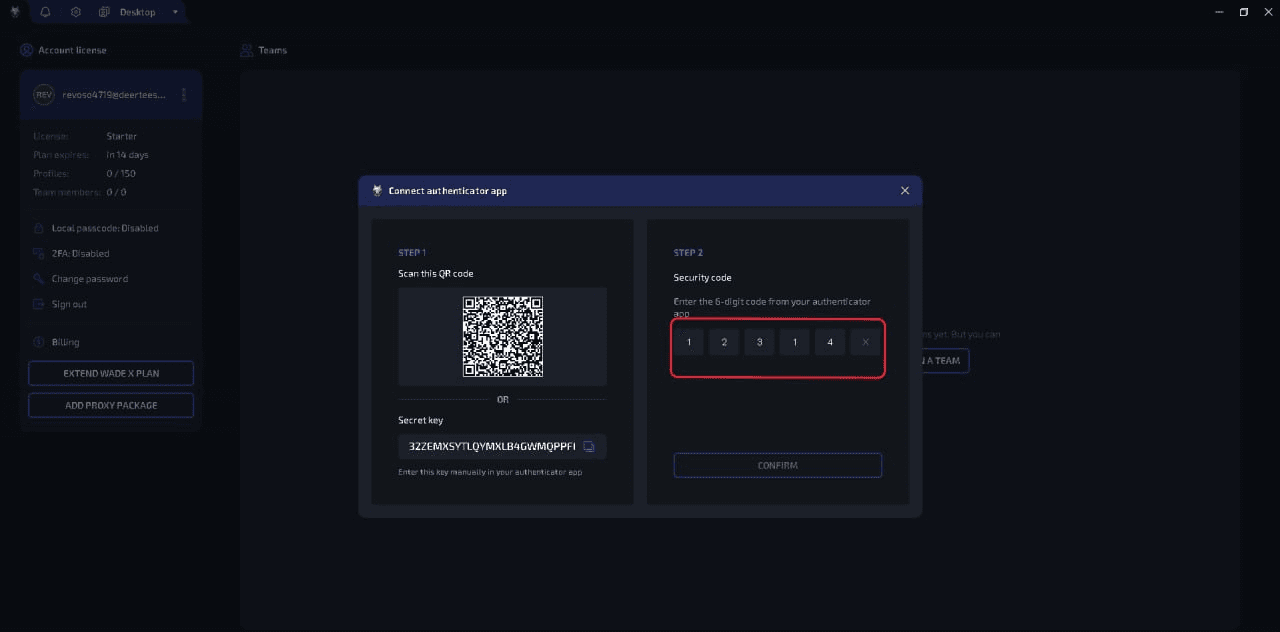
That’s it — your Authenticator App will now be used to verify your sign-ins.
Don’t delete the connected entry from your authenticator app, and make sure you don’t lose access to it. WADE X specifically warns that if you lose access to the Email address or Authenticator App used for 2FA, recovering your account may be difficult.
How to Enable 2FA via Email
If you don’t want to install a separate app, you can set up 2FA via Email instead.
Open your account settings again, click 2FA: Disabled, and select Set via Email.
WADE X will use the Email address already linked to your account. Once the feature is enabled, you’ll see the following status in your settings:
2FA: Email
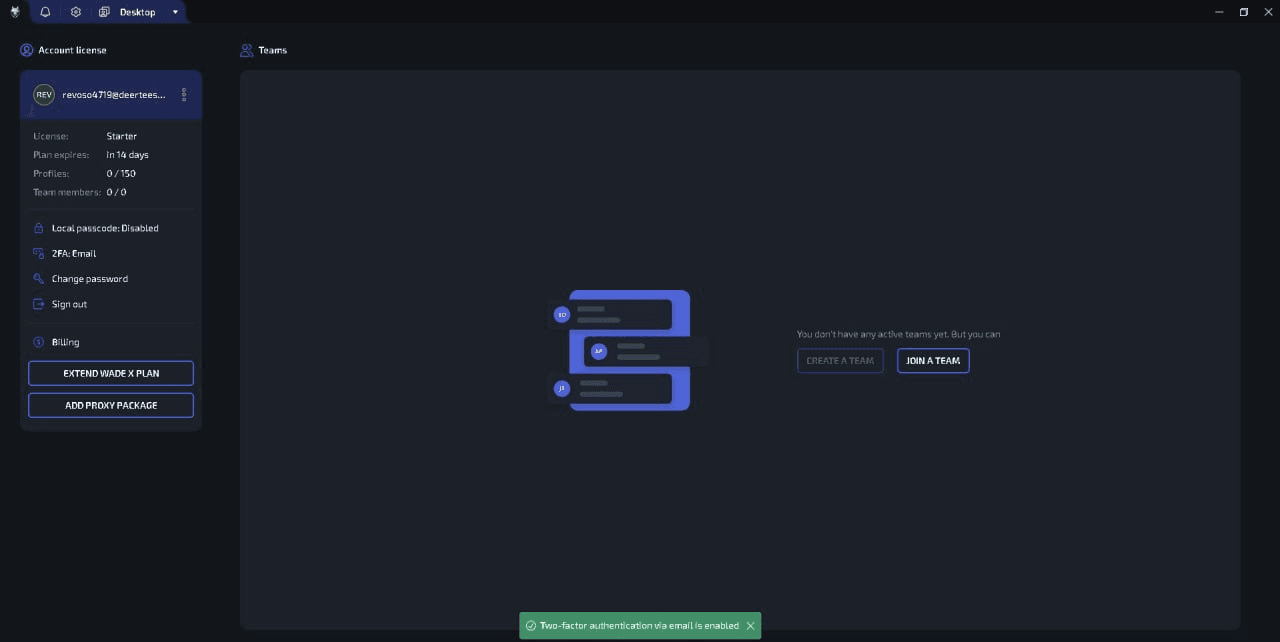
The next time you sign in, enter your Email and Password as usual.
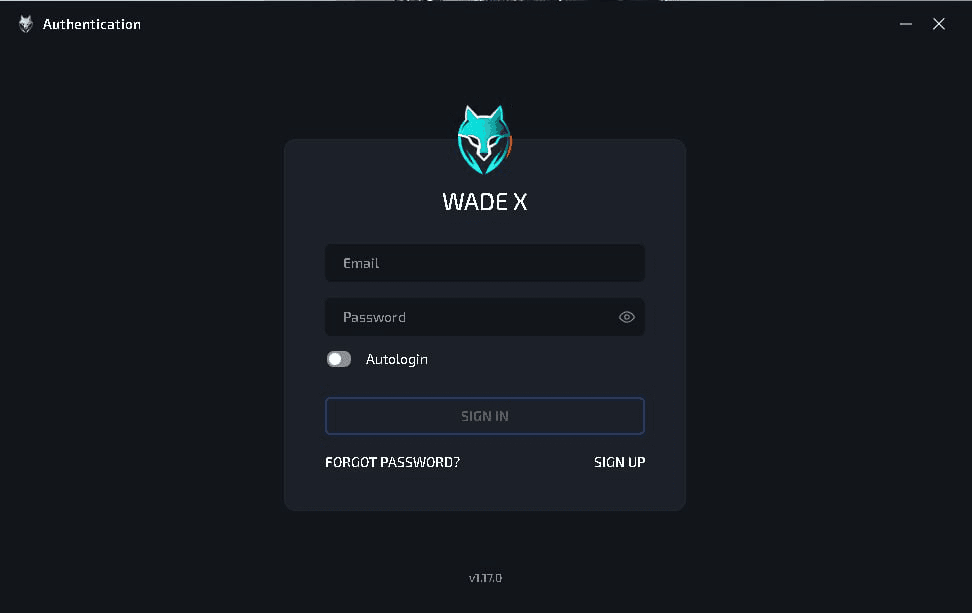
WADE X will then open an additional Enter the verification code screen and send a Verification Code to your email address.
Open the email and enter the code you received. If you don’t want to type the digits manually, copy the code and click Paste code from clipboard.
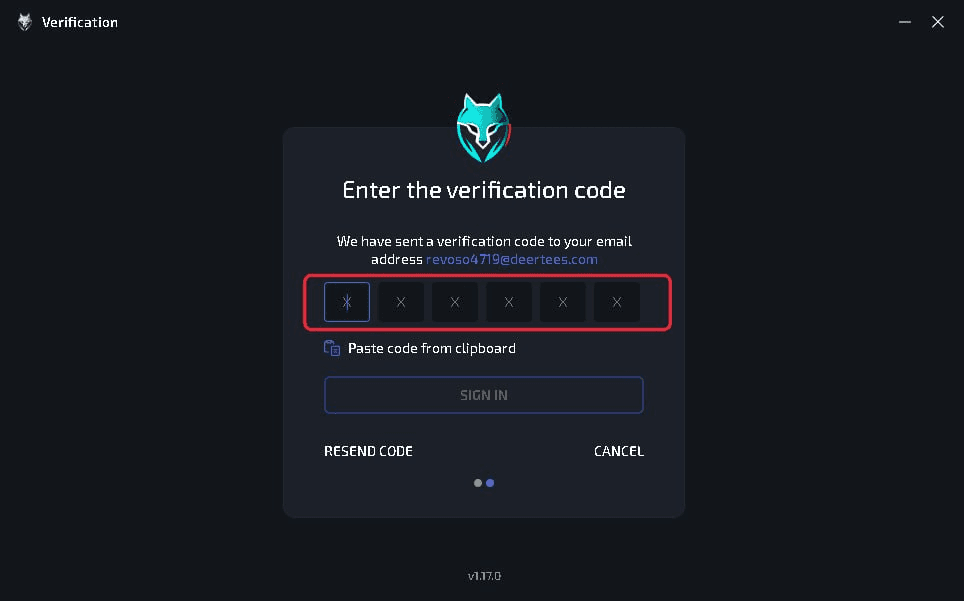
If the email doesn’t arrive, click Resend Code to request a new one.
Once the code has been verified, WADE X will complete the sign-in process.
How to Sign In to WADE X With 2FA via an Authenticator App
The process is slightly different when you use an Authenticator App.
First, enter your Email and Password in the standard WADE X sign-in window. Once your credentials have been verified, you’ll see an additional Enter the verification code screen.
Open the authenticator app on your smartphone and find WADE X. Copy or remember the current six-digit code, enter it into the corresponding fields, and click Sign In.
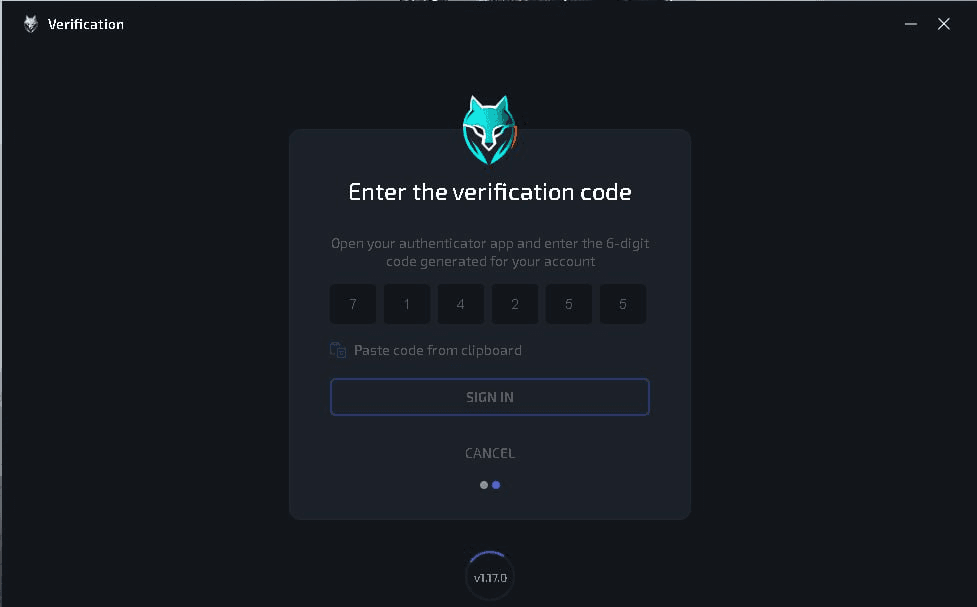
Codes in Authenticator Apps are refreshed periodically. If the current code has already changed, simply use the new one.
How to Check Whether 2FA Is Enabled
You can check your current 2FA status in the same place where you enabled two-factor authentication.
Open your account settings and look at the 2FA line.
For example, if you selected verification via an authenticator app, you’ll see:
2FA: OTP
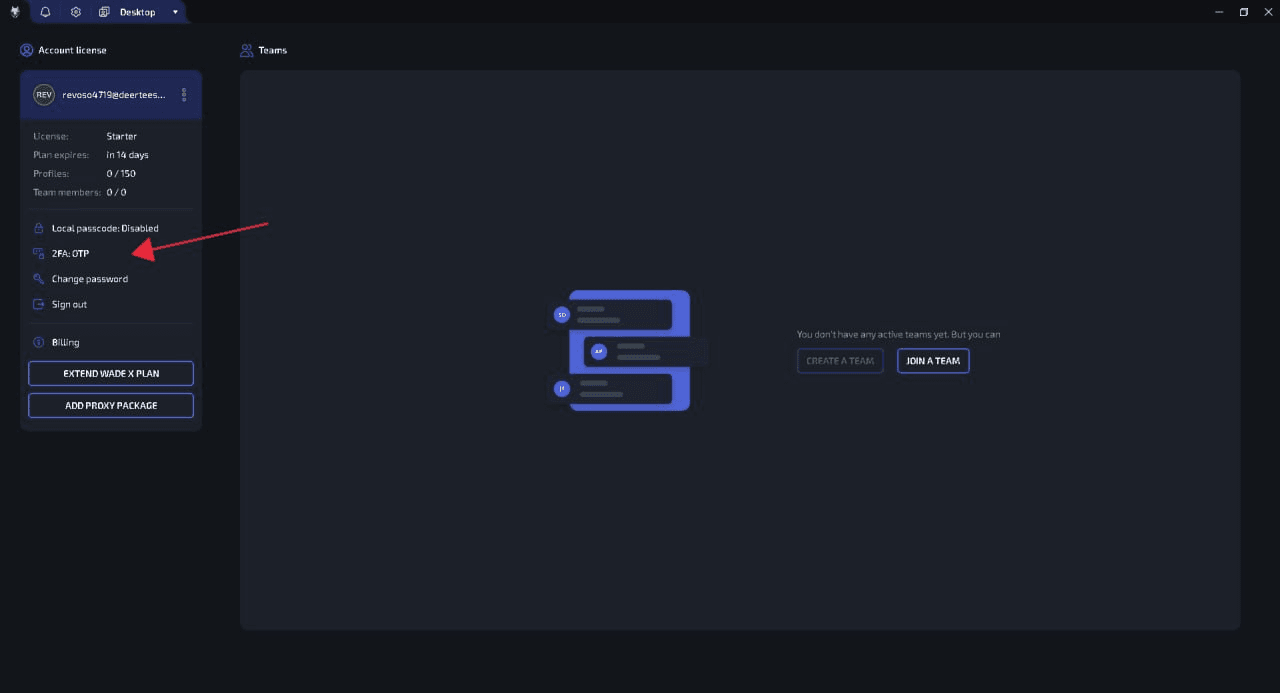
This lets you quickly check whether two-factor authentication is active and which verification method is currently being used.
Which Should You Choose: Authenticator App or Email?
Both options add an extra verification step when you sign in, so choose whichever method is more convenient for you.
With an Authenticator App, one-time codes are generated in a separate app. You’ll need access to the device where the authenticator is configured whenever you sign in.
With Email 2FA, you don’t need to install anything else. WADE X simply sends a Verification Code to the email address linked to your account.
Whichever method you choose, make sure you can maintain access to it.
How to Change Your 2FA Settings
Once two-factor authentication is enabled, your account settings will show the active method instead of 2FA: Disabled — for example, 2FA: OTP.
Click this line whenever you need to access and manage your current 2FA settings.
Conclusion
WADE X supports two methods of two-factor authentication: Authenticator App and Email.
If you choose an Authenticator App, you’ll need to scan the QR Code or add the Secret Key once, then confirm the setup using a six-digit code. If you choose Email, a Verification Code will be sent to the email address linked to your account.
Once 2FA is enabled, your Password alone will no longer be enough to sign in — WADE X will also ask for a one-time code. Setup only takes a few minutes and adds an extra layer of protection to your account.