Common Proxy Errors in WADE X and How to Fix Them
Troubleshoot common Proxy errors in WADE X by checking IP, Port, authentication, Proxy status, website restrictions, and connection issues.
- 1.How a Proxy Works in WADE X
- 2.What to Check If a Proxy Doesn't Work in WADE X
- 3.Incorrect IP Address or Port
- 4.Incorrect Proxy Type
- 5.Incorrect Proxy Format
- 6.Proxy Authentication Errors
- 7.Proxy Passes the Check but the Website Doesn't Open
- 8.403 Forbidden
- 9.429 Too Many Requests
- 10.Website Works Without a Proxy but Not in a WADE X Profile
- 11.500, 502, 503, and 504 Errors
- 12.522 Connection Timed Out
- 13.ERR_PROXY_CONNECTION_FAILED in WADE X
- 14.Connection Refused
- 15.Connection Timed Out
- 16.Proxy Connects but Pages Load Too Slowly
- 17.How to Troubleshoot a Proxy in WADE X Step by Step
- 18.Conclusion
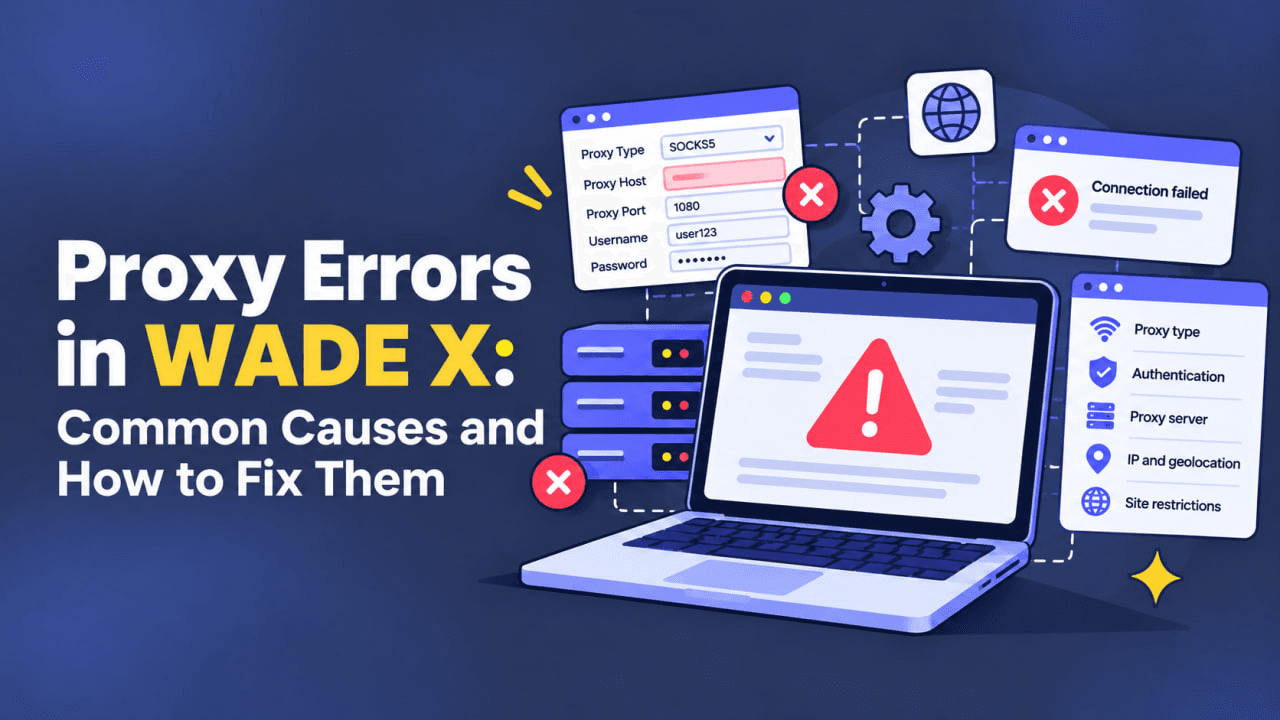
In WADE X, a Proxy can be configured for an individual browser profile, allowing that profile to use a specific IP address and geolocation. However, even a correctly configured profile may fail to connect if the Proxy details are incorrect, the server is unavailable, authentication fails, or the target website restricts the selected IP.
The problem is not always related to WADE X itself. An error may originate from the Proxy provider, the target website, or the network connection. The first step is therefore to determine where the connection fails before changing profile settings.
This guide covers the most common Proxy errors in WADE X and explains how to diagnose and resolve them.
How a Proxy Works in WADE X
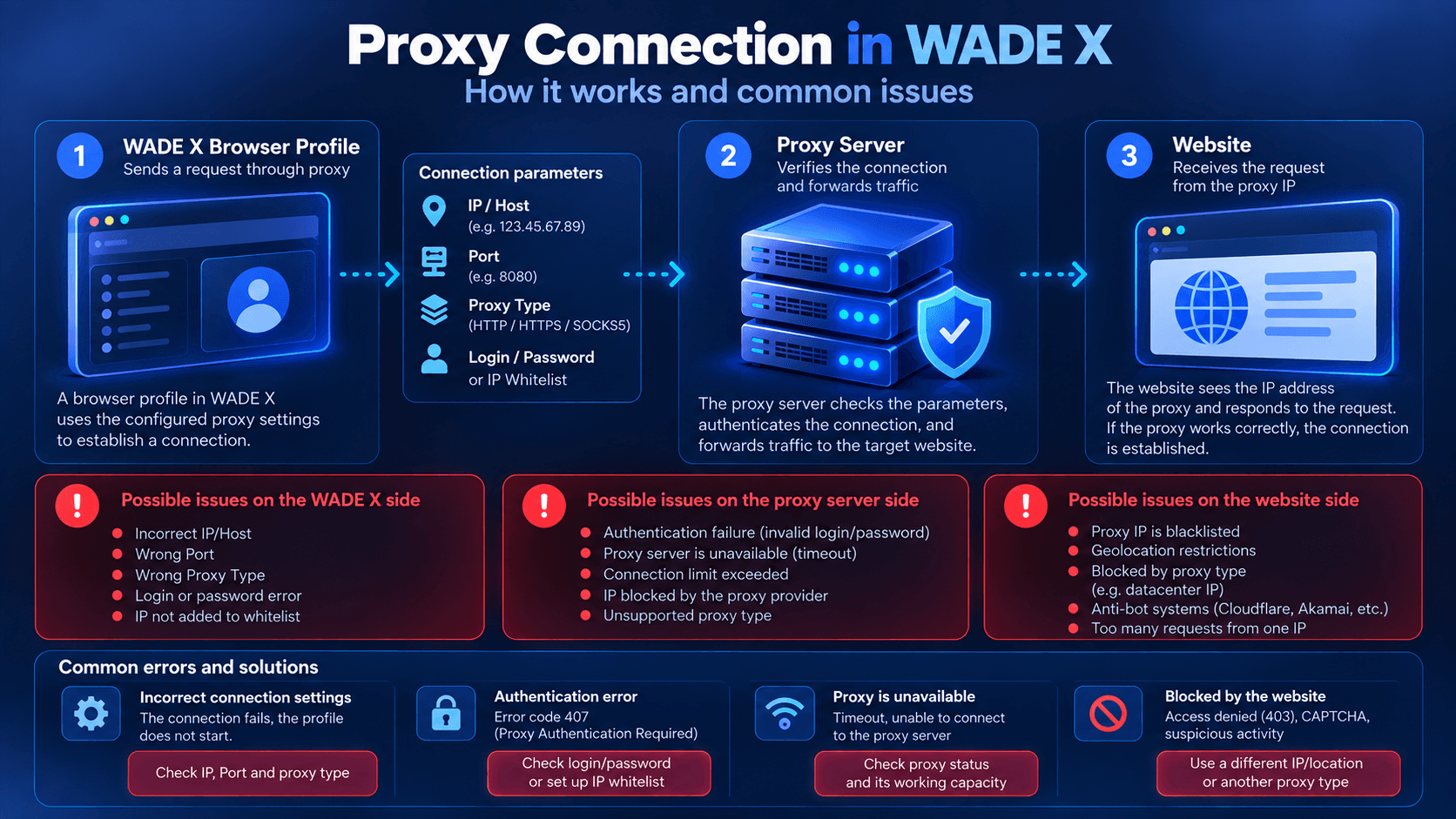
When creating or editing a WADE X profile, you can configure a Proxy that will be used for that profile’s network connection.
The required settings usually include:
- IP address or Host;
- Port;
- Proxy type;
- Login and Password, if authentication is required.
After the profile starts, its connection is routed through the specified Proxy server before reaching the destination website.
The basic connection flow looks like this:
WADE X profile → Proxy server → Website
If the Proxy is working correctly, the website sees the connection coming from the Proxy’s public IP. If something goes wrong along the way — for example, the Port is incorrect, the Proxy is offline, or authentication fails — the connection may return an error.
What to Check If a Proxy Doesn’t Work in WADE X
Avoid changing multiple profile settings at once. Start by checking the basic connection parameters.
Make sure the IP or Host and Port are correct. Then verify the Proxy type and authentication credentials. If your provider uses IP-based authentication, check that your current public IP has been added to the Whitelist.
It is also worth checking whether your Proxy subscription has expired or the available Traffic limit has been reached.
For an initial diagnosis, WADE X provides the built-in Proxy & Geo check. It can quickly test Proxy availability and determine its geolocation. When the check succeeds, the indicator turns green and WADE X displays a corresponding notification.
After launching the profile, you can also open Whoer to check which public IP and geolocation are visible to an external website.
Incorrect IP Address or Port
One of the most common causes of Proxy connection problems is incorrect server information.
For example:
185.123.45.67:8000
A single incorrect digit in the IP address or Port can prevent the connection from being established.
If WADE X cannot verify the Proxy, copy the connection details from your provider’s dashboard again. Check for accidental spaces or extra characters as well.
If your provider uses a Host instead of a numerical IP address, make sure the hostname is entered correctly.
Incorrect Proxy Type
Proxy servers can use different protocols. When adding a Proxy to WADE X, the selected type should match the protocol provided by the Proxy service.
For example, if you receive a SOCKS5 Proxy but configure it as HTTP, the connection may fail.
If you encounter a connection error, compare the Proxy settings in WADE X with the information provided in your Proxy account.
Incorrect Proxy Format
Proxy providers can supply credentials in different formats, such as:
IP:PORTIP:PORT:LOGIN:PASSWORDLOGIN:PASSWORD@IP:PORT
When entering a Proxy manually, make sure each value is placed in the corresponding WADE X field.
For example, Login and Password values should not accidentally be included in the Host or Port fields. If an imported Proxy fails the check, try entering its parameters manually and compare them with the original credentials from the provider.
Proxy Authentication Errors
Sometimes WADE X can reach the Proxy server, but the server refuses to establish the connection because authentication was not accepted.
There are generally two common authentication methods: Login and Password credentials or access based on the user’s public IP.
407 Proxy Authentication Required
The 407 Proxy Authentication Required status means that the Proxy server requires authentication but did not accept the supplied credentials.
Common causes include:
- incorrect Login;
- incorrect Password;
- missing authentication credentials;
- unsupported or incorrectly configured authentication method.
Start by copying the Login and Password from your Proxy provider again and updating them in the WADE X profile.
Also check for spaces at the beginning or end of the credentials, especially when working with long automatically generated passwords.
IP-Based Authentication Doesn’t Work
Some Proxy services do not require a Login and Password. Instead, the provider allows connections only from public IP addresses added to a Whitelist.
If your current public IP changes, the Proxy may stop working even though nothing has changed in the WADE X profile.
Open your Proxy provider’s dashboard and check the Whitelist. Add your current IP if necessary.
Proxy Keeps Asking for Login and Password
Repeated authentication prompts usually indicate that the Proxy server is rejecting the supplied credentials.
Check the Login and Password, subscription status, and authentication settings in the provider’s dashboard. If everything appears correct, test the same Proxy separately to determine whether the problem is related to the server or the current configuration.
Proxy Passes the Check but the Website Doesn’t Open
A successful Proxy check does not guarantee that every website will accept connections from that IP.
A particular resource may restrict certain IP addresses, regions, or address ranges. As a result, the Proxy may work correctly in WADE X while a specific website still refuses to load.
Try opening several unrelated websites inside the same profile. If only one resource fails, the issue is more likely related to that website or the selected IP than to the basic Proxy configuration.
403 Forbidden
A 403 Forbidden response means that the website received the request but refused access.
When using a Proxy, one possible cause is a restriction applied to the selected IP address or its range. A website may also enforce its own geographic or access policies.
For diagnosis, try opening the same website through another IP from a similar location.
If the website works with another Proxy, the original IP or its characteristics may be the source of the problem.
429 Too Many Requests
A 429 Too Many Requests response appears when a server receives too many requests within a certain period.
This can happen during automation, scraping, or other request-intensive workloads.
Repeatedly changing WADE X settings usually will not address the underlying issue. Check the request rate, delays between requests, and the target website’s limits.
If your workflow involves a large number of requests, distribute the load while respecting the target service’s rules and rate limits.
Website Works Without a Proxy but Not in a WADE X Profile
If a website works through your regular connection but stops loading when a Proxy is enabled in a WADE X profile, check the Proxy first.
Run the built-in Proxy & Geo check in WADE X, then test another Proxy in the same profile.
If the website starts working after changing the IP, the problem was likely related to the original Proxy or the website’s handling of that address rather than the Browser Fingerprint settings.
The IP type may also matter. Some websites handle Datacenter, Residential, and Mobile Proxy addresses differently.
500, 502, 503, and 504 Errors
Not every server-side error means that the Proxy is configured incorrectly.
500 Internal Server Error
A 500 Internal Server Error usually indicates a problem on the server processing the request.
Wait a few minutes and reload the page. If the same error appears with several different Proxies and without a Proxy, the problem is more likely on the website’s side.
502 Bad Gateway
A 502 Bad Gateway response means that an intermediary server received an invalid response from another server in the connection chain.
This can happen because of a temporary failure, server overload, or connectivity issue.
Try reconnecting the Proxy in WADE X or testing another IP.
503 Service Unavailable
A 503 Service Unavailable response indicates that the server is temporarily unable to process the request.
Common reasons include maintenance, overload, or a temporary service failure. If the error occurs across different connections, wait and try again later.
504 Gateway Timeout
A 504 Gateway Timeout occurs when a Proxy or another gateway waits too long for a response from the next server.
Possible causes include a slow Proxy, unstable connectivity, or problems with the destination website.
Test another Proxy and compare page loading times.
522 Connection Timed Out
A 522 error is commonly associated with websites using Cloudflare. It indicates a timeout while Cloudflare was attempting to establish a connection with the website’s Origin Server.
If the 522 error occurs through multiple Proxies and your regular connection, the issue is more likely on the website’s side.
If it only happens with one Proxy, test another IP.
ERR_PROXY_CONNECTION_FAILED in WADE X
Because WADE X uses a Chromium-based browser environment, ERR_PROXY_CONNECTION_FAILED may appear when the browser cannot establish a connection to the configured Proxy.
Common causes include:
- incorrect IP or Host;
- incorrect Port;
- unavailable Proxy server;
- expired Proxy access;
- network-level connection problems.
Start by running Proxy & Geo again. If WADE X still cannot establish a connection, verify the Proxy credentials or test another Proxy.
Connection Refused
Connection Refused means that a connection attempt reached the destination but was rejected.
For example, the configured Port may be closed, or the Proxy service may no longer accept connections at that address.
If the settings are correct but the error continues, check the Proxy status with your provider or replace the server.
Connection Timed Out
A Connection Timed Out error means that WADE X waited for a response for too long and terminated the connection attempt.
This can happen because of an overloaded Proxy server, an unstable route, or general network problems.
Try reconnecting. If the issue repeatedly occurs with only one Proxy, replacing that server or IP may resolve the problem.
| Error | What it means | Possible cause | What to check |
|---|---|---|---|
| 407 Proxy Authentication Required | Proxy rejects authentication | Incorrect Login or Password, missing credentials, or incorrect authentication method | Verify credentials and authentication settings |
| 403 Forbidden | Website received the request but refused access | IP, regional, or website-side restrictions | Test another IP from a similar location |
| 429 Too Many Requests | Request rate exceeds the website’s limit | Too many requests within a short period | Check request frequency, delays, and Rate Limits |
| 500 Internal Server Error | Server-side processing error | Problem with the destination server | Test other connections and retry later |
| 502 Bad Gateway | Intermediary server received an invalid response | Temporary failure, overload, or connectivity issue | Reconnect the Proxy or test another IP |
| 503 Service Unavailable | Server is temporarily unavailable | Maintenance, overload, or service failure | Retry later |
| 504 Gateway Timeout | Gateway waited too long for a response | Slow Proxy, unstable connection, or destination issue | Test another Proxy |
| 522 Connection Timed Out | Cloudflare cannot establish a timely connection with the Origin Server | Website-side problem or a route/IP-specific issue | Compare other Proxies and a regular connection |
| ERR_PROXY_CONNECTION_FAILED | Browser cannot connect to the configured Proxy | Incorrect Host or Port, unavailable or expired Proxy | Check Proxy & Geo and Proxy details |
| Connection Refused | Connection was rejected | Closed Port or Proxy server not accepting connections | Check server status and Port |
| Connection Timed Out | Proxy does not respond in time | Overload, unstable route, or network problems | Reconnect or replace the Proxy |
Proxy Connects but Pages Load Too Slowly
Slow page loading does not necessarily indicate an incorrect configuration.
Performance can be affected by the distance to the Proxy server, current server load, network routing, and the characteristics of the Proxy itself.
Open several websites inside the same profile. If every resource is slow only when using a particular Proxy, try another server or IP.
If multiple Proxies are slow within the same WADE X profile, check the profile configuration and your local internet connection as well.
How to Troubleshoot a Proxy in WADE X Step by Step
When a Proxy stops working, it is usually more effective to diagnose the connection systematically instead of changing several settings at once.
Start with the IP or Host, Port, and Proxy type. Then verify the Login and Password or check the Whitelist if the provider uses IP-based authentication.
Next, run the built-in Proxy & Geo check. If the Proxy passes, launch the profile and open Whoer to confirm the public IP and geolocation visible to external websites.
If the connection works but only one website fails, test another IP. If the same error occurs across several different Proxies, investigate the destination website and your local network connection.
This process helps distinguish WADE X configuration issues from problems with the Proxy provider or the target website.
Conclusion
Most Proxy problems in WADE X can be diagnosed by checking a few basic parameters in order: IP or Host, Port, protocol, authentication, and Proxy server availability.
The built-in Proxy & Geo tool provides a quick way to perform the initial connection check. After launching the profile, Whoer can be used to confirm which public IP and geolocation are visible to an external website.
If the Proxy works with most resources but a specific website returns a 403, 429, or another error, the issue may be related to that resource or the selected IP. If the Proxy fails the basic WADE X check, start by verifying its configuration and status with the provider.
The key is to troubleshoot one layer at a time. This makes it easier to determine whether you need to adjust the WADE X configuration, replace the Proxy, or wait for a third-party service to recover.