Canvas 3.0 in Wade X: How Canvas Fingerprint Works
Learn how Canvas 3.0 manages Canvas Fingerprint in Wade X, why a stable Canvas Hash is not enough, and how to check Canvas with Browser Fingerprint Checkers.

- 1.What Is Canvas and Where Is It Used?
- 2.How Canvas Is Used in Browser Fingerprinting
- 3.How Canvas Management Methods Have Evolved
- 4.Why a Stable Canvas Hash Does Not Necessarily Mean a Good Implementation
- 5.Canvas 3.0 in Wade X
- 6.Why Canvas Should Not Be Considered Separately From Other Parameters
- 7.How to Use Canvas 3.0 in Wade X
- 8.Why You Shouldn't Simply Disable Canvas
- 9.How to Check Canvas in Wade X
- 10.Conclusion
A stable Canvas result is often presented as an indicator of an antidetect browser’s quality. However, an identical Canvas Hash alone does not mean that a Browser Fingerprint is configured correctly. On real devices, rendering depends on multiple components, so what matters is not only the final Hash but also how the browser produces it.
Wade X uses Canvas 3.0 technology. Its purpose is to manage the Canvas Fingerprint at the browser level while preserving the normal behavior of Canvas.
Let’s look at why Canvas is used for Browser Fingerprinting, how Canvas management methods have evolved, and how Canvas 3.0 in Wade X differs from earlier approaches.
What Is Canvas and Where Is It Used?
Canvas is an HTML element and API that allows a web page to create raster graphics directly in the browser. Using Canvas, JavaScript can draw lines, shapes, gradients, text, and other visual elements.
Canvas is widely used for charts, editors, visualizations, CAPTCHA, games, and many other web applications.
However, differences in how browsers render Canvas content also make it useful for Canvas Fingerprinting.
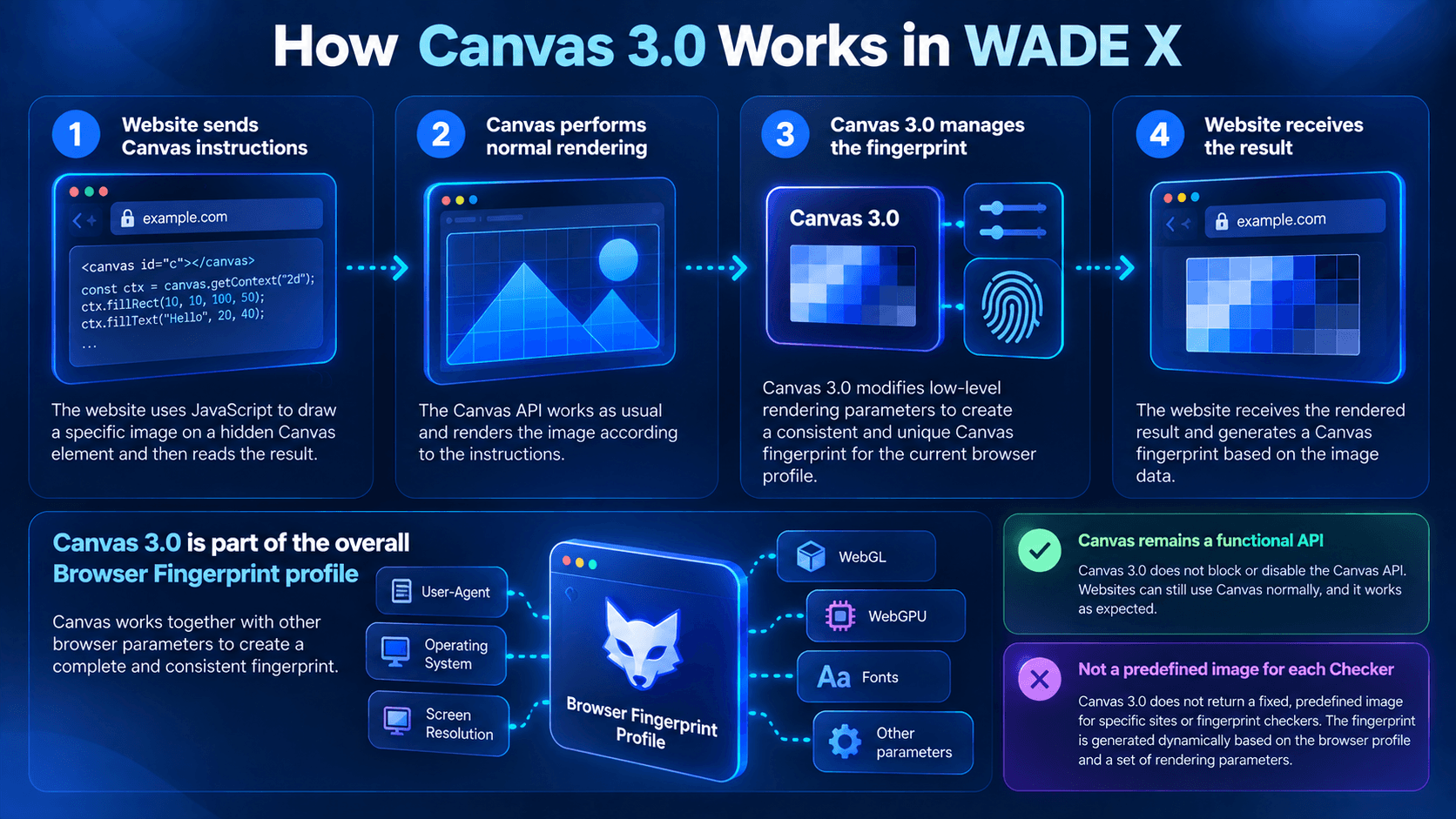
A website can create a hidden <canvas> element and ask the browser to render a predefined scene, such as text in a particular font, geometric shapes, shadows, and color gradients. The website can then read the rendering output and convert it into a signature or Hash.
The final result can depend on several factors:
- operating system;
- browser engine version;
- installed fonts;
- anti-aliasing algorithms;
- color rendering settings;
- hardware acceleration;
- GPU and drivers.
These differences may be practically invisible to the human eye while still existing at the individual pixel level. This makes Canvas one of the data sources that can contribute to a Browser Fingerprint.
At the same time, a Canvas Hash should not be treated as a guaranteed unique device identifier. Identical or similar configurations may produce the same result, while changes to the software or hardware environment can affect rendering.
How Canvas Is Used in Browser Fingerprinting
Canvas is usually not analyzed in isolation.
A website can compare it with User-Agent, Client Hints, WebGL, WebGPU, fonts, screen resolution, WebRTC, Audio Fingerprint, and other parameters.
For example, two profiles may have different Canvas Hashes, but that alone does not mean their Browser Fingerprints appear natural. What matters is whether Canvas is consistent with the other characteristics of the device.
This is why Wade X treats Canvas as part of the overall browser profile environment rather than as an isolated value that simply needs to be made unique.
How Canvas Management Methods Have Evolved
Early approaches to changing a Canvas Fingerprint were relatively simple. One method involved adding additional elements directly to the rendered image.
This changed the final output and, consequently, the Canvas Hash. However, deeper analysis could potentially reveal the modification itself.
Another common approach was to add controlled noise to the rendering result. The changes could be minimal, but the resulting image would still differ from what the device would naturally produce.
This method also has a technical limitation: the original rendering depends on the actual environment. If the same profile is launched on computers with different GPUs or graphics stacks, the underlying rendering result may change as well.
As Canvas Fingerprinting techniques developed, simply producing a different Canvas Hash became insufficient. The way the result is generated also became an important consideration.
| Approach | How it works | Main limitation |
|---|---|---|
| Adding elements | Additional elements are inserted directly into the rendered image | The modification may be detectable through deeper analysis |
| Controlled noise | Small changes are added to the rendering output | The resulting image differs from the device’s natural output, while the original rendering still depends on the real environment |
| Predefined result | A prepared image is returned instead of the actual rendering output | The approach depends on known Canvas tests and is difficult to apply to arbitrary Canvas content |
| Canvas 3.0 | Canvas Fingerprint is managed at the browser level while normal Canvas functionality is preserved | Canvas remains part of the overall Browser Fingerprint and should stay consistent with other profile parameters |
Why a Stable Canvas Hash Does Not Necessarily Mean a Good Implementation
One possible way to achieve a stable result is to prepare an image in advance and return it instead of the actual rendering output.
This approach can look convincing on well-known Browser Fingerprint Checkers. If a service uses the same Canvas test for a long time, a browser could theoretically recognize that particular scenario and return a predefined result.
The Hash could then remain stable even across different devices.
The limitation becomes apparent when the Canvas request changes.
Real systems can use their own scenes, fonts, shapes, dimensions, and other parameters. The requested content may also change between sessions or individual requests.
If a browser only knows predefined results for specific tests, that approach is difficult to apply to arbitrary Canvas content. For this reason, a good result in one Fingerprint Checker should not be treated as proof that the browser will behave the same way in every environment.
Canvas 3.0 in Wade X
Wade X uses a more advanced approach called Canvas 3.0.
The core idea is to avoid replacing the actual Canvas output with a predefined image and avoid building the entire mechanism around noticeable modifications to the rendered image.
Canvas continues to perform its normal function: a website sends rendering instructions to the browser, and the browser generates the corresponding output.
At the same time, Canvas 3.0 allows the Canvas Fingerprint to be managed at the browser level.
For Wade X users, this means Canvas remains a fully functional API. It does not need to be completely blocked, and websites can continue using it for graphics and other standard browser functionality.
Canvas 3.0 is integrated into Wade X’s Browser Fingerprint system and works as part of the overall profile environment rather than as an isolated parameter.
Why Canvas Should Not Be Considered Separately From Other Parameters
Even technically correct Canvas behavior does not automatically make the entire Browser Fingerprint consistent.
Suppose Canvas appears normal, but WebGL, WebGPU, User-Agent, or operating system characteristics contradict one another. For a website, these inconsistencies may be more informative than the Canvas Hash itself.
This is why Canvas management in Wade X is part of a broader browser environment.
The relationship between Canvas and graphics-related parameters is especially important. For example, WebGL Image in Wade X is rendered using the device’s real GPU. Wade X does not emulate an entirely different graphics card. Minimal post-processing may be applied to the rendering output when necessary.
WebGL Context values returned by the browser can be adjusted, but they should remain internally consistent with the other characteristics of the profile.
This approach makes it possible to treat Canvas, WebGL, and other components as parts of one Browser Fingerprint rather than as a collection of independent modifications.
How to Use Canvas 3.0 in Wade X
Canvas 3.0 does not require separate browser extensions or complete blocking of the Canvas API.
The technology operates at the browser level and is used within the Browser Fingerprint settings of a Wade X profile.
When creating a profile, it is important to consider more than Canvas alone. User-Agent, operating system, WebGL, WebGPU, and other characteristics should describe a logically consistent environment.
In Smart Mode, Wade X selects profile parameters that are close to a natural device configuration. This simplifies profile setup and helps maintain consistency between different Browser Fingerprint components.
However, neither Canvas 3.0 nor Smart Mode should be considered a guarantee of passing a particular anti-bot or anti-fraud check. Such systems can evaluate many technical and behavioral signals.
Why You Shouldn’t Simply Disable Canvas
Some users try to prevent Canvas Fingerprinting by completely blocking Canvas through browser settings or extensions.
However, Canvas is a standard web technology. It is used by charts, image editors, visualizations, CAPTCHA, and many other website components.
If a page expects Canvas to work normally but the browser returns an error or an empty result, that behavior can itself become a characteristic of the browser environment.
For this reason, Wade X focuses on managing Canvas behavior as part of the Browser Fingerprint rather than simply disabling the API.
How to Check Canvas in Wade X
After creating a profile, you can check which Canvas parameters are visible to a regular web page.
For an initial profile check, you can open Whoer directly inside Wade X. The service provides an overview of the browser characteristics detected by the website.
For a more detailed analysis, Whoer also provides a dedicated Browser Fingerprint Checker. It can be used to inspect the Browser Fingerprint and additional browser characteristics, including Canvas-related parameters.
Other specialized Browser Fingerprint Checkers can also be used for additional analysis.
BrowserLeaks allows you to inspect the rendered Canvas image and its calculated Signature. The service also provides separate tests for WebGL and other browser APIs.
AmIUnique collects a broader Browser Fingerprint and compares the combination of detected parameters with results in its own database.
CreepJS analyzes multiple browser APIs and can help identify unusual combinations or inconsistencies between different Browser Fingerprint components.
The goal should not be to achieve a supposedly “perfect” result in a particular Checker. Different services use different testing methods, while real websites may perform completely different checks.
Conclusion
Canvas remains an important component of Browser Fingerprinting. Its output can depend on the browser, operating system, fonts, graphics stack, and hardware environment, so simply changing the Canvas Hash is not enough to create a consistent profile.
Wade X uses Canvas 3.0 to manage the Canvas Fingerprint without building the mechanism around predefined images created for specific Checker scenarios.
Canvas should also be considered together with WebGL, WebGPU, User-Agent, and other Browser Fingerprint characteristics.
For an initial profile check, you can use Whoer, while Whoer Browser Fingerprint Checker, BrowserLeaks, AmIUnique, and CreepJS can provide a more detailed look at Canvas and other browser parameters.
A result from a single Checker is not a universal measure of Browser Fingerprint quality. What matters more is how naturally the browser behaves and how consistently the different characteristics of the profile fit together.