Canvas and WebGL Fingerprinting: How It Works in Wade X
Learn how Canvas and WebGL Fingerprinting work, how these parameters are managed in Wade X, and how to check them with Whoer and other Browser Fingerprint tools.

- 1.What Are Canvas and WebGL?
- 2.How Canvas Fingerprinting Works
- 3.How WebGL Fingerprinting Works
- 4.Canvas and WebGL in Wade X
- 5.Why Websites Analyze Multiple Parameters Together
- 6.Why You Should Not Simply Disable Canvas and WebGL
- 7.How to Check Canvas and WebGL in a Wade X Profile
- 8.How to Check a Wade X Profile as a Whole
- 9.Conclusion
Browser Fingerprinting allows websites to analyze a browser and device without relying directly on Cookies. A digital fingerprint can include many parameters, such as User-Agent, screen resolution, fonts, WebRTC, AudioContext, Canvas, WebGL, and other browser characteristics.
Canvas and WebGL were originally designed for graphics rendering, but the way they behave on a specific device can also be used as part of a Browser Fingerprint.
For antidetect browser users, these parameters are especially important. In Wade X, Canvas and WebGL are part of the overall profile environment, so their characteristics should remain consistent with other browser and device parameters.
What Are Canvas and WebGL?
Canvas is an HTML5 API that allows a browser to create 2D graphics, including text, shapes, gradients, and other visual elements.
The result of the same rendering operation may vary slightly across devices. It can be affected by the operating system, browser, fonts, graphics stack, and other characteristics of the environment.
WebGL (Web Graphics Library) is used for hardware-accelerated 2D and 3D graphics. It is more closely connected to the GPU, graphics drivers, and the operating system’s graphics capabilities.
To a user, an image rendered on two computers may look identical, while the underlying technical output can still differ. This is why Canvas and WebGL can serve as additional sources of data for Browser Fingerprinting.
| Parameter | Canvas | WebGL |
|---|---|---|
| Primary purpose | Creating 2D graphics | Hardware-accelerated 2D and 3D graphics |
| What a website can analyze | Rendering output and Canvas Hash | WebGL Context and WebGL Image output |
| Main influencing factors | Operating system, browser, fonts, and graphics stack | GPU, graphics drivers, browser, operating system, and graphics stack |
| Examples of available data | Rendered text, shapes, colors, and gradients | Renderer, Vendor, Extensions, texture limits, and graphics rendering output |
How Canvas Fingerprinting Works
With Canvas Fingerprinting, a website creates a Canvas element and uses JavaScript to ask the browser to render a specific set of elements, such as text, shapes, colors, and gradients.
In simplified form, the process works like this:
- The website creates a Canvas.
- JavaScript defines the same scene for visitors.
- The browser renders the scene.
- The script reads the resulting output.
- A Canvas Hash can then be calculated from this data.
Differences in fonts, operating systems, and rendering mechanisms can produce different results.
However, a Canvas Hash is not necessarily a unique identifier for a single user. Devices with similar configurations may produce identical or similar results. For this reason, websites usually analyze Canvas together with other parameters.
How WebGL Fingerprinting Works
WebGL can provide websites with additional information about the graphics environment.
WebGL Fingerprinting can generally be divided into two components.
WebGL Context includes values available through the WebGL API, such as Renderer, Vendor, supported Extensions, texture limits, and other graphics-related characteristics.
WebGL Image is the result of rendering a graphics scene. It can be affected by the GPU, drivers, browser, and other components of the graphics stack.
As a result, a website can analyze both information about the graphics environment and the actual rendering output.
Canvas and WebGL in Wade X
In Wade X, Canvas and WebGL are part of the overall Browser Fingerprint profile rather than isolated parameters that should be considered separately.
For WebGL Image, Wade X uses the device’s real GPU. The browser does not attempt to fully emulate a completely different graphics card. Minimal post-processing may be applied to the rendering output when necessary.
WebGL Context values can be adjusted, but they should remain consistent with each other and with other profile characteristics.
For example, if a profile represents a particular operating system and hardware configuration, its WebGL parameters should logically match that environment.
The same principle applies to other Browser Fingerprint components: the goal is not to maximize the uniqueness of individual values, but to maintain consistency across the profile as a whole.
Why Websites Analyze Multiple Parameters Together
Modern browser analysis systems rarely rely only on a Canvas Hash or GPU model.
They can compare multiple characteristics, including:
- User-Agent and Client Hints;
- operating system;
- Canvas;
- WebGL and WebGPU;
- Screen Resolution;
- fonts;
- WebRTC;
- Audio Fingerprint;
- other Browser Fingerprint characteristics.
For example, a WebGL Renderer may not be unusual on its own. A mismatch between that Renderer and other profile parameters, however, may be more significant.
This is why a Wade X profile should be treated as a complete browser environment. Smart Mode helps select parameters that are close to a natural device configuration and keeps them consistent with each other.
However, neither Smart Mode nor individual Browser Fingerprint settings can guarantee the outcome of a specific anti-fraud check.
Why You Should Not Simply Disable Canvas and WebGL
Canvas and WebGL are not used exclusively for Fingerprinting.
Canvas can be used for charts, editors, CAPTCHA systems, visualizations, and other web components. WebGL is used by maps, 3D applications, games, and other browser-based services.
Completely disabling these technologies may therefore affect website functionality. In addition, the absence of expected APIs can itself become part of a Browser Fingerprint.
The purpose of an antidetect browser is not to disable as many browser capabilities as possible, but to create a functional and internally consistent environment.
How to Check Canvas and WebGL in a Wade X Profile
After creating a profile, you can inspect it using specialized Browser Fingerprint Checkers. These services collect browser-accessible parameters and generate reports showing what characteristics a website can detect.
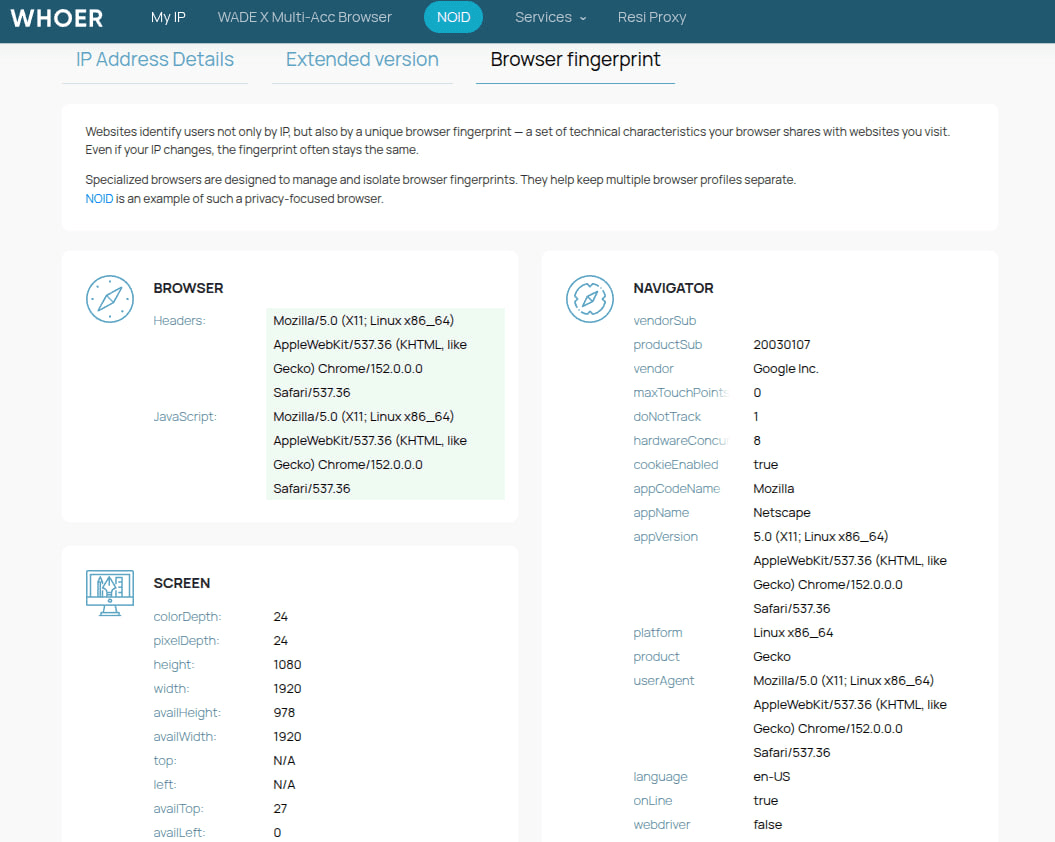
For an initial check, you can open Whoer directly inside a Wade X profile. The service can be used to inspect the public IP, geolocation, and general characteristics of the browser environment detected by the website.
For a more detailed analysis, Whoer also provides a dedicated Browser Fingerprint Checker. It can be used to inspect the Browser Fingerprint and additional browser characteristics, including parameters related to Canvas and WebGL.
Several other specialized services can also be used for additional diagnostics.
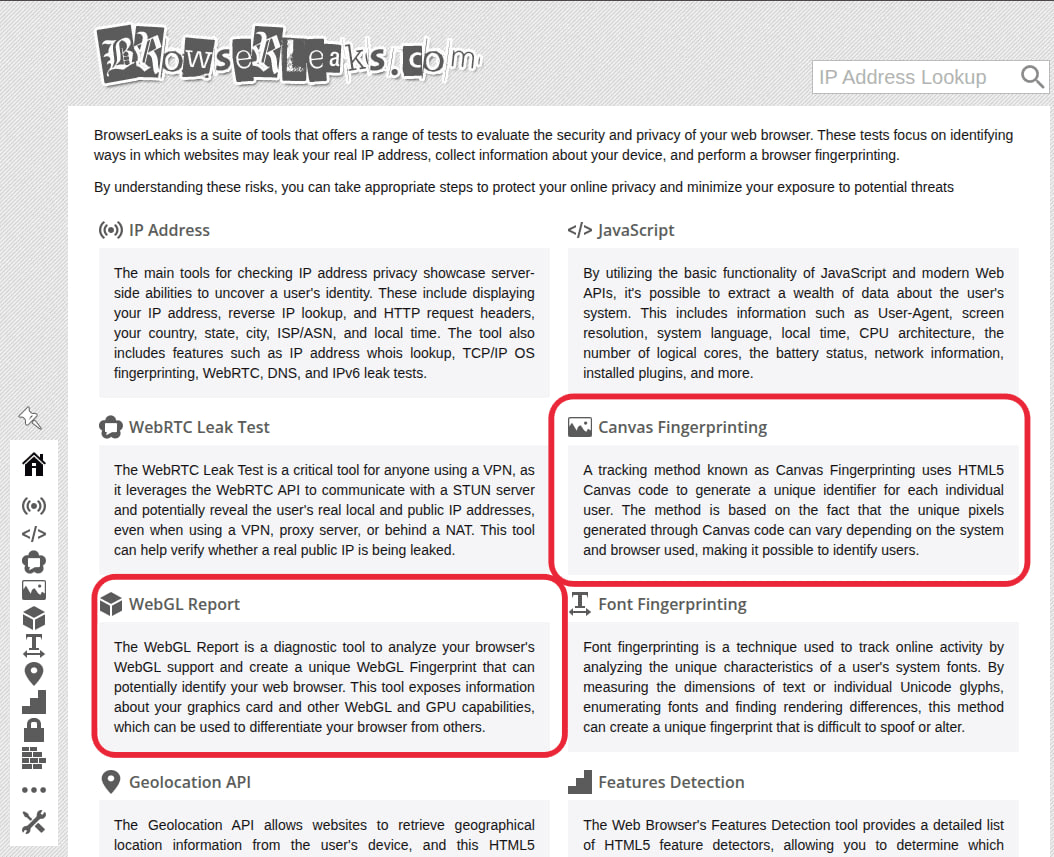
BrowserLeaks is useful for basic Canvas and WebGL checks. Its Canvas Fingerprinting test displays the image generated by the browser and its Canvas Hash. The WebGL Report provides information about the graphics environment, including Vendor, Renderer, supported Extensions, and other parameters.
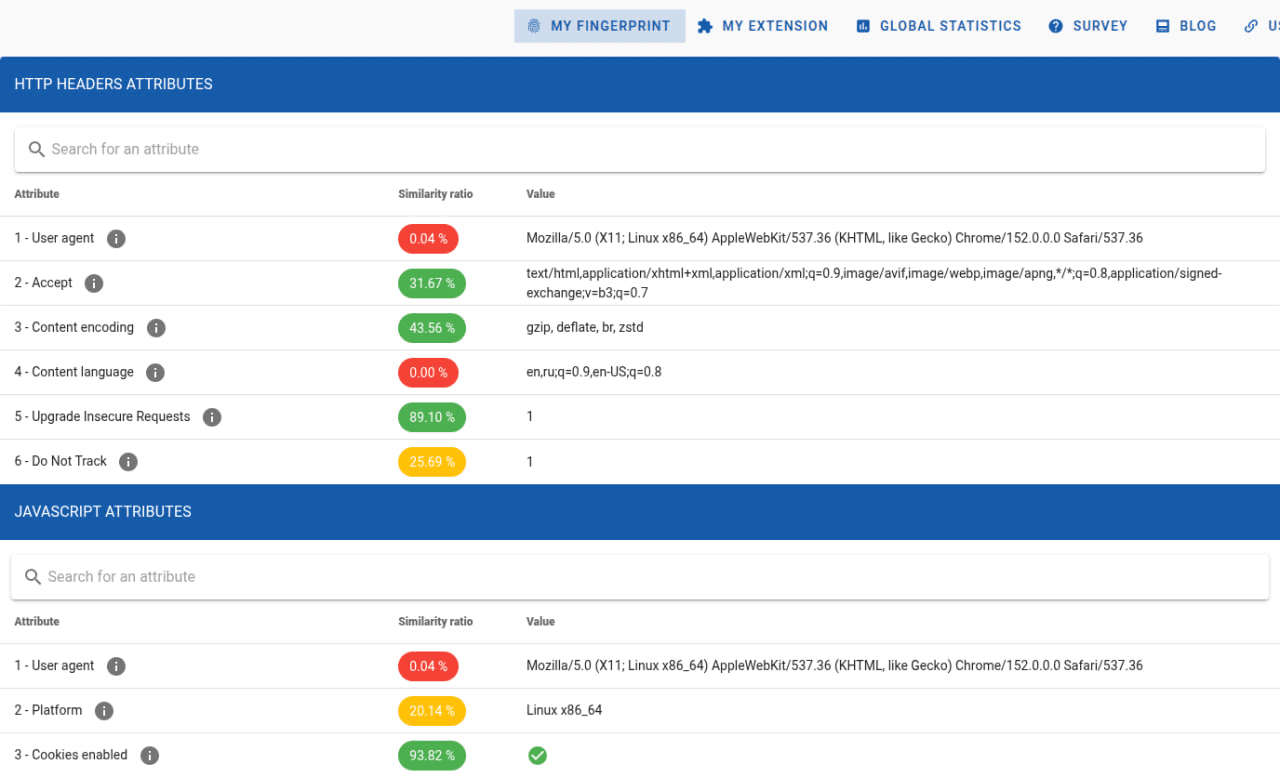
AmIUnique collects a broader Browser Fingerprint that includes Canvas, WebGL, fonts, plugins, headers, and other characteristics. It compares the resulting fingerprint with other entries in its database, which can help indicate how common a particular combination of parameters is.
CreepJS provides more in-depth diagnostics. In addition to collecting browser characteristics, it analyzes the behavior of different APIs and can reveal inconsistencies between parameters. This can be useful when individual values appear normal but do not fit together as part of the same environment.
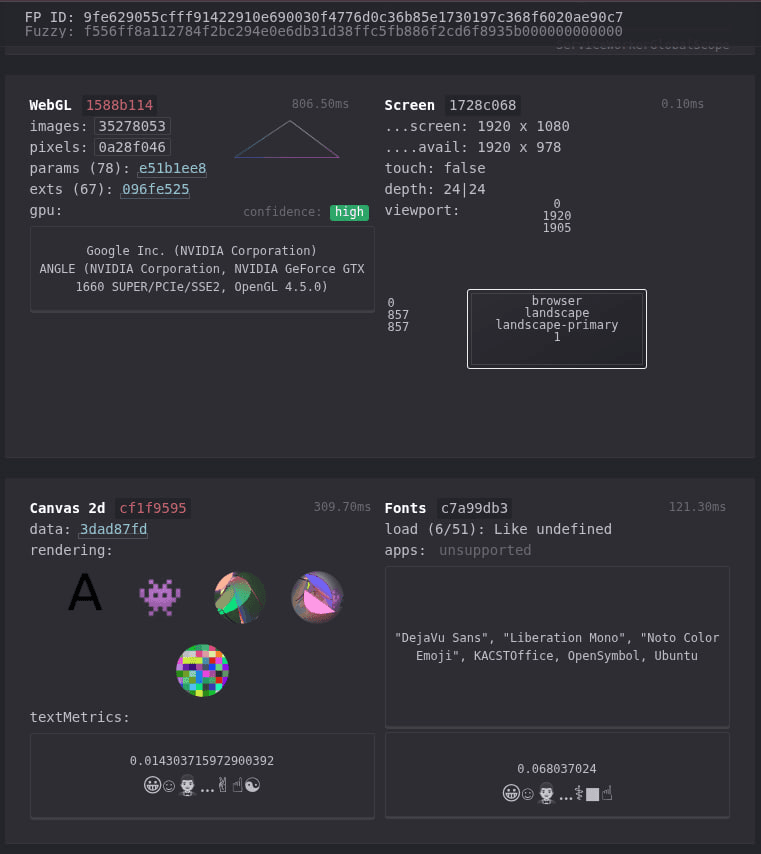
Different checkers may produce different results because they use their own tests, datasets, and analysis methods. A profile should therefore not be evaluated solely by a single score or uniqueness percentage.
How to Check a Wade X Profile as a Whole
After creating a profile, you can start with a general check through Whoer to see how the website identifies the browser and its main environment parameters.
For a more detailed Browser Fingerprint analysis, you can then use Whoer Browser Fingerprint Checker, BrowserLeaks, AmIUnique, or CreepJS to inspect Canvas, WebGL, and other fingerprint components individually.
For example, if a profile is intended to represent a particular device configuration, the detected browser version, operating system, graphics parameters, and other characteristics should logically fit together rather than clearly contradict one another.
This approach allows you to choose the appropriate tool for each task: Whoer for a general environment check, Whoer Browser Fingerprint Checker for Browser Fingerprint analysis, BrowserLeaks for individual Canvas and WebGL parameters, AmIUnique for comparing a fingerprint against its database, and CreepJS for deeper diagnostics.
Conclusion
Canvas and WebGL are important components of Browser Fingerprinting, but they do not define a digital fingerprint on their own. Websites can compare graphics rendering results with the User-Agent, operating system, WebGPU, WebRTC, and other browser characteristics.
In Wade X, Canvas and WebGL are part of an individual browser profile. WebGL Image relies on the real GPU, while WebGL Context parameters can be managed in a way that maintains consistency across the environment.
After creating a profile, you can check it with Whoer and use Whoer Browser Fingerprint Checker, BrowserLeaks, AmIUnique, or CreepJS for a more detailed analysis of Canvas, WebGL, and other Browser Fingerprint components.
The key is to evaluate the profile as a whole. A single Canvas Hash or WebGL Renderer does not determine the outcome of an anti-fraud check; what matters is how consistently the different characteristics of the browser environment fit together.